The Ultimate Shopware 6 Installation Guide 2025: AI-Ready Setup

Complete Shopware installation guide for 2025. From server setup to AI integration, legal compliance, and conversion optimization for German markets.

Profile picture of Kevin Lücke, Co-Founder at Qualimero
Kevin Lücke
Co-Founder at Qualimero
December 19, 202518 min read

Why Shopware Installation Is More Than Just Setup

Installing Shopware 6 in 2025 is no longer simply a technical process to get software running. It's the foundation for a digital ecosystem that must be high-performing, legally compliant, and—increasingly important—ready for artificial intelligence (AI). Building an AI-ready storefront requires careful planning from the very first step of the installation process.

Many installation guides end the moment the shop becomes accessible. But this is precisely where problems begin for many merchants in the German-speaking market (DACH region). Without correct server configuration, performance suffers (Core Web Vitals). Without immediate integration of legal compliance tools, warning letters and legal action threaten. And without a strategy for AI tools, the shop loses ground to competitors from day one.

This guide takes you beyond the basic technical Shopware installation to show you the path to a sales-ready, intelligent storefront. We cover the gaps that standard documentation often overlooks: from GDPR-compliant server selection to the integration of modern AI sales agents. According to Shopware's official documentation, proper installation is the critical foundation for all subsequent optimization efforts.

Decision Phase: Which Installation Method Fits Your Business?

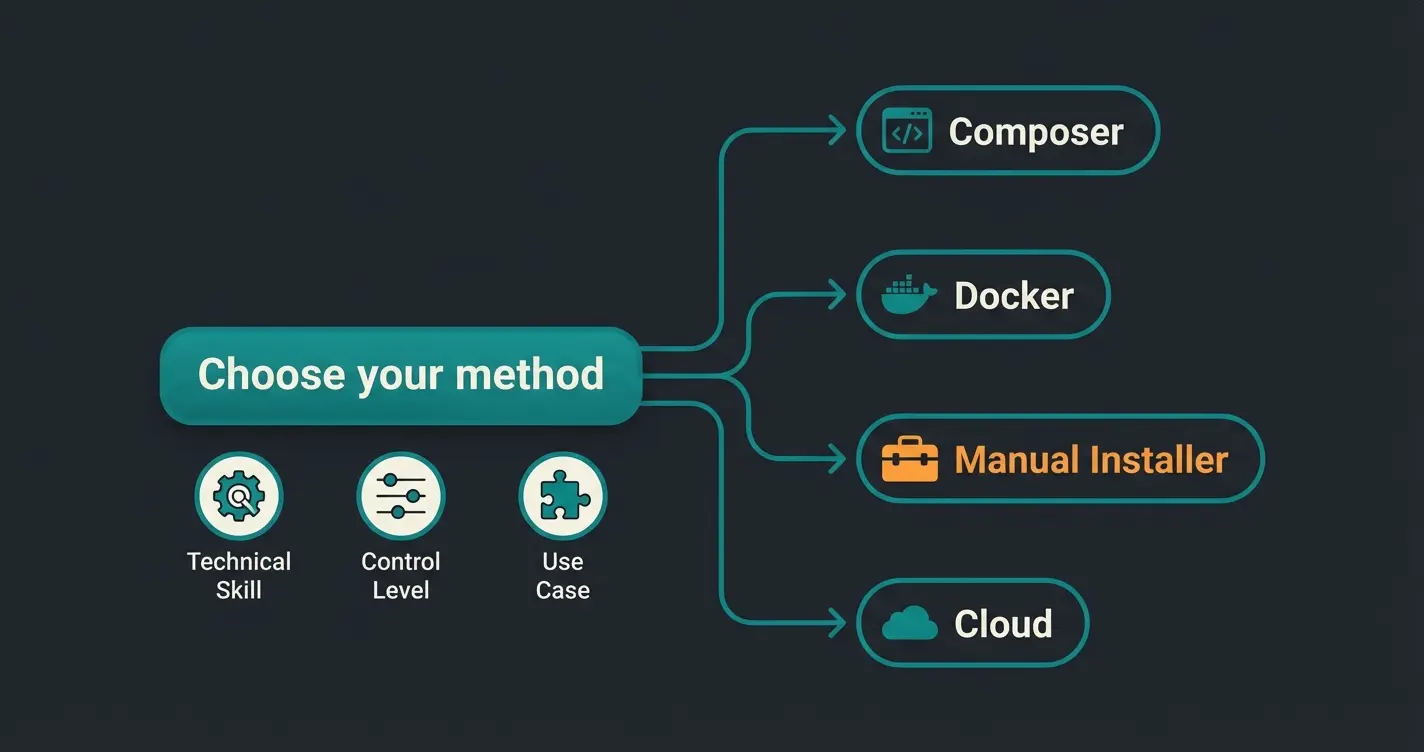
Before we write a single line of code, we need to set the course. Shopware 6 offers various paths for installation. The choice of method determines how easily you can deploy updates and manage plugins later. This decision has long-term implications for your shop's scalability and integration with advanced features like AI-powered product consultation.

The Three Paths to Shopware Installation

FeatureInstaller (ZIP File)Composer (Pro Method)Cloud / SaaS
Target AudienceBeginners, Non-TechiesAgencies, Developers, Serious BrandsStartups, MVP
DifficultyLow (Browser Wizard)Medium/High (Terminal Knowledge Required)No Installation
MaintainabilityMedium (Updates via Browser)High (Versioning via Git/Composer)Automatic
FlexibilityLimitedMaximum (CI/CD Pipelines Possible)Limited
AI IntegrationPossibleOptimal (Easy Integration of Complex Libraries)Integrated (Plan Dependent)

Our Recommendation for 2025

If you're building a professional shop that needs to scale long-term, use the Composer installation. Why? First, update security: you can test updates before they go live. Second, performance: Composer optimizes PHP's autoloader, making the shop faster. Third, modern workflow: it's the standard for modern PHP development and facilitates collaboration with agencies. As noted by Shopware's developer resources, Composer-based installations provide the most flexibility for complex e-commerce operations.

The Shopware Installation Roadmap
1
Select Host

Choose GDPR-compliant hosting with proper specs for Shopware 6.6+

2
Check Requirements

Verify PHP 8.2+, Node.js 20, MariaDB 10.11+ compatibility

3
Run Installation

Execute Composer or ZIP installer based on your technical level

4
Database Sync

Configure database connection and import initial data

5
Legal Setup

Install Rechtssicherheit plugin and configure GDPR compliance

6
AI Integration

Activate Copilot and configure AI product consultation tools

Prerequisites and Server Preparation: Building the Foundation

A failed Shopware installation is caused by insufficient server prerequisites in 90% of cases. Shopware 6 is a modern Symfony-based system and demands corresponding power. Proper preparation at this stage prevents countless headaches later and ensures your shop can leverage advanced AI capabilities from the start.

Hardware Requirements: Minimum vs. Recommended

Don't skimp on RAM. Shopware 6 uses Elasticsearch and message queues, which are memory-hungry. According to Shopware's system requirements documentation, here are the specifications you need:

  • RAM: Minimum 4 GB, Recommended 8 GB+ (especially when using Docker or running Elasticsearch in parallel)
  • CPU: Multi-core processor (minimum 4 cores recommended for fast indexing)
  • Storage: SSD is mandatory. Plan for at least 10 GB for the system plus space for images/media

Software Stack: Updated for Shopware 6.6 and 6.7

With the release of Shopware 6.6 and the upcoming 6.7 (May 2025), requirements have become stricter. Outdated server environments lead to immediate abort errors. According to apmac.de and Shopware's official changelog, here are the current requirements:

  • Operating System: Linux (Ubuntu 22.04+ or Debian 12 recommended). Windows only via WSL2 or Docker.
  • Web Server: Nginx (recommended for performance) or Apache 2.4 (with `mod_rewrite`). HTTP/2 support should be enabled.
  • PHP Version: For Shopware 6.6.x: PHP 8.2 or 8.3. For Shopware 6.7 (from May 2025): Support for PHP 8.4. PHP settings: `memory_limit` minimum 512M, `max_execution_time` minimum 30s.
  • Database: MySQL 8.0+ (Warning: avoid versions 8.0.20/21!) or MariaDB 10.11+ (LTS version recommended).
  • Node.js: Mandatory Version 20 (LTS) for building the storefront/admin.
  • Composer: Version 2.2 or higher.

Hosting Recommendations for the DACH Region

For German merchants, server location (GDPR compliance) and specialized support are decisive factors. Generic mass hosters often lead to performance problems with Shopware. Consider these options recommended by Hetzner and other specialists:

  • Professionals & Agencies: Hetzner (Dedicated/Cloud) – extremely good price-performance ratio, but requires sysadmin knowledge.
  • Managed Shopware Hosting: Creoline, Maxcluster, or Timme Hosting. These providers specialize in Shopware, offer Nginx pre-configurations, and Elasticsearch clusters.
  • Enterprise Level: Consider dedicated infrastructure with guaranteed resources and 24/7 support for high-traffic shops.
Server architecture diagram showing Shopware 6 requirements including PHP, database, and caching layers

Step-by-Step Installation: The Core Process

We now walk through the installation process. Choose your path: Option A (Recommended) or Option B (Quick). Both methods will get your shop running, but they differ significantly in long-term maintainability and your ability to integrate advanced features like AI-driven consultation.

Option A: The Composer Installation (Best Practice)

This is the path for long-lasting, maintainable shops. You need SSH access to your server. According to 2hatslogic.com and Shopware's best practices, this method provides the most flexibility for professional deployments.

Step 1: Create the Project. Connect via SSH and navigate to your web directory (e.g., `/var/www/html`). Execute the following command:

```bash # For the latest stable version (Production Template) composer create-project shopware/production my-shop ```

Step 2: Set Permissions. The web server user (usually `www-data`) needs write permissions:

```bash chown -R www-data:www-data my-shop chmod -R 775 my-shop/var ```

Step 3: The Installation Wizard via CLI. You can use the browser wizard, but professionals use the console. According to packagist.org, the CLI method provides more control and better error reporting:

```bash bin/console system:setup bin/console system:install --create-database --basic-setup ```

This guides you through database setup via text prompts and creates the `.env` file with your configuration.

Option B: The One-Click Installer (Browser-Based)

Ideal if you don't have SSH access or just want to quickly test Shopware. According to LitExtension's guide, this method is suitable for beginners but has limitations for production environments:

  1. Download: Download the Shopware 6 Installer from the official website.
  2. Upload: Unzip the ZIP file and upload all files via FTP to the main directory of your server.
  3. Access: Open your browser and go to `your-domain.com/shopware-installer.phar.php`.

The Browser Installation Assistant (Wizard)

Whether Option A or B, you usually end up in the graphical installer. Here are the critical points to watch for during this phase:

  1. System Check: The wizard checks PHP extensions and RAM. Everything must be green. Take yellow warnings (e.g., missing `mod_rewrite`) seriously and fix them before proceeding.
  2. Database Configuration: Enter host (usually `localhost`), user, and password. Check the box for "Create new database" if one doesn't exist yet.
  3. Installation: The progress bar runs through. Tables are created and data is imported. Common error: If it hangs at "Importing Database," the PHP `memory_limit` is often too low or `max_execution_time` is too short.
  4. Shop Configuration: Select German as the default language and Euro as the currency here if your focus is on DACH. A subsequent change of the system default language is complex and can cause data inconsistencies.
Shopware installation wizard interface showing database configuration and system check steps

German Market Configuration: Legal Compliance and GDPR

Your shop is installed—but not yet legally operable in Germany. Unlike US software, "out-of-the-box" here doesn't mean "lawsuit-proof." The German market has specific requirements that must be addressed immediately after completing your Shopware installation.

The Routing Problem (`/public`)

A common error after installation: the shop is only accessible under `my-shop.com/public`. According to Stack Overflow discussions and Shopware's documentation, here's the solution:

Solution: The domain must point directly to the `/public` folder in the web server (Apache/Nginx), not to the main directory.

Nginx Example: ```nginx root /var/www/html/my-shop/public; ```

Establishing Legal Compliance

Shopware 6 is solid by default, but for the strict German laws (Basic Price Ordinance, Button Solution, Imprint Requirement), you need adjustments. According to IT-Recht Kanzlei, these steps are mandatory:

  1. Install Plugin: Use extensions like "Legal Compliance for Shopware 6" or interfaces to providers like IT-Recht Kanzlei or Händlerbund. These plugins ensure that terms and conditions and cancellation policies are displayed in the right places (checkout, emails). Important: Update these plugins regularly. Version 1.2.6+ of the IT-Recht interface offers improved PDF management.
  2. Taxes & Currencies: Check under Settings > Taxes whether 19% and 7% are correctly configured. Ensure that "Display gross prices in shop" is activated for B2C.
  3. Cookie Consent: A consent manager is mandatory. Shopware provides a basic cookie notice, but for tracking (Google Analytics, etc.), you need professional tools like Cookiebot or Usercentrics that integrate via plugin.
German E-Commerce Legal Requirements
100%
Imprint Required

All commercial websites in Germany must display a complete legal notice

14 Days
Return Period

Mandatory cooling-off period for consumer purchases under EU law

€50K+
Potential Fines

GDPR violations can result in significant penalties for non-compliance

7-19%
VAT Rates

Standard and reduced tax rates must be correctly configured for German B2C

Phase 2: Optimization for Conversion with AI

This is where this guide differs from standard tutorials. A Shopware shop in 2025 must be intelligent. The Shopware installation is just the skeleton; AI is the brain. Modern e-commerce demands more than static product catalogs—it requires intelligent systems that understand and respond to customer needs in real-time.

Why AI Is Critical for German Shops

The German customer is demanding. They expect precise answers and fast help. Static product texts are often no longer sufficient. Shopware recognized this and offers native functions with the AI Copilot. Understanding how AI Chatbots transform customer interactions is essential for staying competitive.

Activating Shopware AI Copilot

From the "Rise" plan, the AI Copilot is available according to Shopware's pricing documentation. It offers features you should set up immediately after installation:

  • AI-Generated Content: Create product descriptions at the push of a button. This saves days of manual work when initially populating the shop.
  • Image Keyword Assistant: The AI analyzes your uploaded images and automatically sets alt tags and keywords. This is a massive SEO boost that's often forgotten. As confirmed by Brainstreamtechnolabs, automated alt text generation can improve image search rankings by 30%.
  • Review Summaries: When you import products, the AI can summarize long reviews. This helps customers make quick decisions.

The AI Product Consultant: Your Competitive Advantage

Standard search functions are often frustrating ("Zero results"). Integrating AI product consultants that function like salespeople in a physical store can dramatically improve customer experience. Plugins like "AI Product Advisor" available through Shopware's marketplace enable this functionality.

Consider this scenario: A customer searches for "running shoes for rain in the forest." The standard search might show nothing because "forest" isn't in the title. An AI-powered search understands the context (trail running, waterproof) and suggests suitable Gore-Tex shoes. This contextual understanding is what separates modern e-commerce from outdated catalog displays.

Action Step: After setup, install a plugin for "Conversational Commerce" or use the OpenAI API to enrich your product data. Explore how AI consultation can transform your customer experience from passive browsing to active guidance.

Transform Your Shop with AI Product Consultation

Don't just install Shopware—build an intelligent sales platform. Our AI product consultant integrates seamlessly with your fresh Shopware installation to provide personalized customer guidance 24/7.

Start Your Free Trial

Troubleshooting: When the Installation Gets Stuck

Even with the best preparation, things can get stuck. Here is an interactive problem-solving guide for the most common errors during Shopware installation. These solutions are compiled from 2hatslogic.com, community forums, and official documentation.

Error 1: "500 Internal Server Error" After Access

Cause: Usually file permissions or missing PHP extensions.

Solution:

  1. Check the error log (`/var/log/apache2/error.log` or `/var/log/nginx/error.log`).
  2. Reset the permissions: `chown -R www-data:www-data .`
  3. Increase the `memory_limit` in `php.ini` to 512M.

Error 2: Installation Hangs at "Database Import"

Cause: The database server is dropping the connection (timeout).

Solution:

  • Increase `max_execution_time` in PHP to 300s.
  • Set `max_allowed_packet` in MySQL config to at least 32M.

Error 3: "Command not found" with Composer

Cause: Composer is not globally installed or the PHP version in CLI is wrong.

Solution: Check with `php -v` whether the CLI version matches the web version (e.g., both 8.2). Hosts often have multiple PHP versions running in parallel.

Error 4: Admin Login Doesn't Work / Page Loads Endlessly

Cause: Often a problem with routing or cache.

Solution:

  • Clear the cache via console: `bin/console cache:clear`.
  • Check if the `.htaccess` file exists in the `/public` folder (for Apache).
  • Verify that the admin URL is correctly configured in your `.env` file.
Troubleshooting flowchart for common Shopware installation errors

Installation Method Comparison: Making the Right Choice

Understanding the differences between installation methods helps you make an informed decision based on your specific needs and technical capabilities. This comparison draws from trusted.de reviews and community experience.

CriteriaZIP InstallerComposerShopware Cloud
Installation Time15-30 minutes30-60 minutesInstant
Technical Skill RequiredBasic FTP knowledgeCLI/Terminal proficiencyNone
Update ProcessManual browser updatesControlled via composer.jsonAutomatic
Plugin ManagementBrowser-basedCLI + BrowserIntegrated marketplace
AI Feature IntegrationManual plugin installSeamless library integrationPlan-dependent
Recommended ForTesting, small projectsProduction shops, agenciesQuick MVPs, non-technical users
Long-term ScalabilityLimitedExcellentLimited by plan

What Changes with Shopware 6.7 (May 2025)

Shopware 6.7 brings massive changes under the hood according to Shopware's roadmap and memo-ict.nl. The admin area switches from Webpack to Vite, which accelerates development but may require plugin updates. Additionally, accessibility (Accessibility) becomes standard to meet legal requirements (EAA - European Accessibility Act).

These changes emphasize why the Composer installation method is recommended: it allows you to test 6.7 compatibility in a staging environment before updating your production shop. Shops using AI Product Consultation tools should verify plugin compatibility before upgrading.

Frequently Asked Questions About Shopware Installation

Theoretically yes, but it's not recommended. Shopware requires shell access (SSH) for maintenance tasks and workers. Cheap shared hosting packages often don't offer enough RAM or allow long-running processes. According to shop-studio.io and trusted.de, dedicated or managed hosting is essential for production shops.

This is not a simple installation but a migration. First, install a fresh Shopware 6 (as described here), then use the "Migration Assistant" (plugin) to pull data from the old shop. The migration process requires careful planning for custom plugins, themes, and data structures.

Shopware 6.7 brings massive changes under the hood. The admin area switches from Webpack to Vite, which accelerates development but may require plugin updates. Additionally, accessibility becomes standard to meet legal requirements (EAA). Support for PHP 8.4 is also included.

The "Community Edition" is open source and free. For AI features (Copilot) and B2B functions, you need paid plans (Rise, Evolve, Beyond). The free version is suitable for small shops, but growing businesses benefit from the advanced features in paid tiers.

A basic installation takes 30-60 minutes depending on your method and experience level. However, a complete setup including legal compliance configuration, payment provider integration, and initial product import typically requires 1-2 days. AI feature configuration adds another few hours to the initial setup.

Your Complete Post-Installation Checklist

After completing your Shopware installation, follow this checklist to ensure your shop is ready for the German market and optimized for conversions. This covers everything from the technical foundation to AI-powered product consultation integration.

  1. Verify server configuration: Confirm PHP memory_limit (512M+), execution time, and caching are properly configured
  2. Configure SSL certificate: HTTPS is mandatory for checkout and GDPR compliance
  3. Install legal compliance plugin: Set up IT-Recht Kanzlei or Händlerbund integration immediately
  4. Configure tax rates: Verify 19% standard and 7% reduced rates are correctly applied
  5. Set up payment providers: Configure PayPal, credit cards, and local methods like Klarna
  6. Enable cookie consent manager: Install and configure Cookiebot or Usercentrics
  7. Activate AI Copilot: Generate initial product descriptions and set up image keyword automation
  8. Configure search optimization: Enable Elasticsearch and consider AI-powered search enhancement
  9. Set up email templates: Customize order confirmations and shipping notifications for German legal requirements
  10. Test checkout flow: Complete test purchases to verify the entire customer journey

Conclusion: Your Path to Modern E-Commerce

The Shopware installation is the first step on a long journey. By choosing Composer, taking the server requirements for 2025 seriously, and immediately optimizing the shop for "legal compliance" and "AI readiness," you're not building a house of cards—you're building a fortress.

Use the power of Shopware 6.6/6.7 and don't start with an empty shop, but with an intelligent system ready to compete in the tough DACH market. According to Qualimero's research, shops with AI-powered product consultation see significantly higher conversion rates and customer satisfaction scores.

Your Next Steps:

  1. Book hosting (Nginx + Elasticsearch with German data center)
  2. Perform installation via Composer using production template
  3. Install legal texts plugin and configure all compliance requirements
  4. Activate AI Copilot and begin populating products with AI-generated content
  5. Integrate AI product consultation for enhanced customer guidance

Good luck building your Shopware empire!

Ready to Launch Your AI-Powered Shopware Store?

You've mastered the installation—now supercharge your shop with intelligent product consultation. Our AI seamlessly integrates with Shopware 6 to provide personalized customer guidance, increase conversions, and reduce support load.

Get Started Free

Related Articles

Hire your first digital employee now!