Introduction: More Than Just Another 'Oops' Moment
"Oops! An error occurred."
Every Shopware user knows this generic error message that can instantly raise your blood pressure. But this article isn't about unwanted system crashes – it's about the parcel carrier UPS (United Parcel Service) and how to prevent any "oops" moments in your logistics operations.
Integrating UPS into Shopware 6 is a standard process for many merchants. However, most stop at simple label creation. In an era where customers expect Amazon-like delivery experiences, simply sending a tracking number is no longer sufficient. According to Qualimero, the biggest challenge in e-commerce support is the WISMO inquiry ("Where Is My Order?"), which can overwhelm support teams without proper automation.
This comprehensive guide takes you deep into the subject matter: From technical setup (including the new OAuth 2.0 migration) through strategic use of the Rule Builder to AI-powered customer communication that transforms a simple delivery question into a new sale. You'll learn how to automate Shopware support while simultaneously improving customer satisfaction.
The Basics: Integrating UPS in Shopware 6
Before we dive into AI strategies, the foundation must be solid. Shopware 6 offers flexible options for creating shipping methods out of the box. However, for a real connection to UPS systems (for live rates and label printing), you need more than just the standard settings. Understanding how AI-powered customer service can enhance your shipping operations starts with proper technical integration.
Step 1: Manual Shipping Method Creation (The Basic Approach)
Even if you use a plugin, it's helpful to understand how Shopware manages shipping methods at its core.
- Navigate to Settings > Shop > Shipping
- Click Create Shipping Method
- Basic Data: Enter a name like 'UPS Standard' or 'UPS Express', add a description such as 'Delivery within 1-2 business days', and upload the official UPS logo to build trust at checkout
- Availability Rule: This is where you connect the shipping method with the Rule Builder (more on this later)
- Price Matrix: Define prices based on weight or cart value
Step 2: Integration via API Interface
To automate processes, you need an interface that exchanges the following data:
- Order data to UPS: For label creation and shipment processing
- Tracking data to Shopware: For customer notifications and order updates
- Live Rates (Optional): Calculation of exact shipping costs at checkout based on your negotiated UPS rates ('Negotiated Rates')
This is where plugins become essential. The right Shopware ERP integration can also enhance your shipping workflow by connecting inventory and order management seamlessly.
Plugin Comparison: Native vs. Multi-Carrier Solutions
Search results show a dominance of plugin providers in the Shopware UPS space. But which one is right for your strategy? Here's a direct comparison based on current market data from Shopware, Sendcloud, and Pickware.
| Feature | UPS Adapter (Pickware) | Sendcloud / Outvio | Official UPS App |
|---|---|---|---|
| Target Audience | Shops wanting everything managed in Shopware (Native Integration) | Shops using multiple carriers (DHL, UPS, DPD in parallel) | Beginners / Basic users |
| Label Creation | Directly in Shopware backend (Admin) | On external platform (SaaS Dashboard) | In backend (often limited) |
| Costs | Monthly fee + transaction-free (except shipping costs) | Subscription model + price per label (often tiered) | Often free, but fewer features |
| Returns Portal | Integrated in Shopware | Separate, external returns portal (strong feature) | Basic returns |
| Special Feature | Feels like a native part of Shopware. No media breaks. | 'Amazon-Style' tracking emails and analytics dashboards | Direct connection without middleware |
| AI Potential | High (data sits directly in Shopware DB) | Medium (data is external, API call required) | Medium |
Our Recommendation
Use Pickware if you already manage your warehouse logistics in Shopware. Data sovereignty remains in your system, which is advantageous for our later AI strategy. The seamless integration means AI consultation transforms your shipping data into actionable customer insights.
Use Sendcloud/Outvio if you ship internationally and want to automatically switch between carriers (e.g., 'cheapest provider for packages to France'). This is especially valuable for shops following AI consultation strategies across multiple markets.
Critical Update: The UPS OAuth 2.0 Migration
One point that many older blog articles ignore, but is critical for your Shopware UPS integration: The security protocols have changed.
UPS permanently discontinued the old API access keys in 2024 (deadline was August 2024), as confirmed by Klizer, Exinent, and VPCart. If you're still using old plugins that only ask for 'User ID' and 'Access Key', your shipping will no longer work.
Expert Tip: Many merchants fail at activating 'Negotiated Rates' in the new OAuth model. Make sure your UPS Account Manager has explicitly enabled your customer number for API usage, otherwise the checkout will display standard list prices that are often 30-40% higher than your actual costs.
Check if your existing plugin still uses legacy Access Keys that stopped working in August 2024
Create an account and register a new application to receive OAuth 2.0 credentials
Obtain your Client ID and Client Secret from the newly created application
Enter the new OAuth credentials in your shipping extension settings
Confirm with your UPS Account Manager that API access for negotiated rates is enabled
Advanced Strategy: Using UPS as a Sales Tool
Most shops view shipping as a cost center. We're flipping the script. With the Shopware Rule Builder, you can strategically deploy UPS to increase cart value or protect margins. This approach aligns with how AI consultation boosts conversions by presenting shipping options intelligently.
Scenario 1: Upselling Through 'Express'
Customers are impatient. Use UPS Express not just as an option, but as a reward.
- Rule: Cart value >= $150 (or equivalent)
- Action: UPS Express is reduced from $15.90 to $0.00
- Psychology: The customer adds another product to get 'premium delivery' for free
Scenario 2: Margin Protection for Oversized Items
UPS charges surcharges for certain dimensions. Smart rule configuration protects your margins automatically.
- Rule: Product property 'Length' > 100cm OR Weight > 20kg
- Action: Hide 'UPS Standard' and show only 'Freight' or automatically calculate the UPS oversized surcharge
- Implementation: Configure this under Settings > Shop > Shipping > Availability Rule
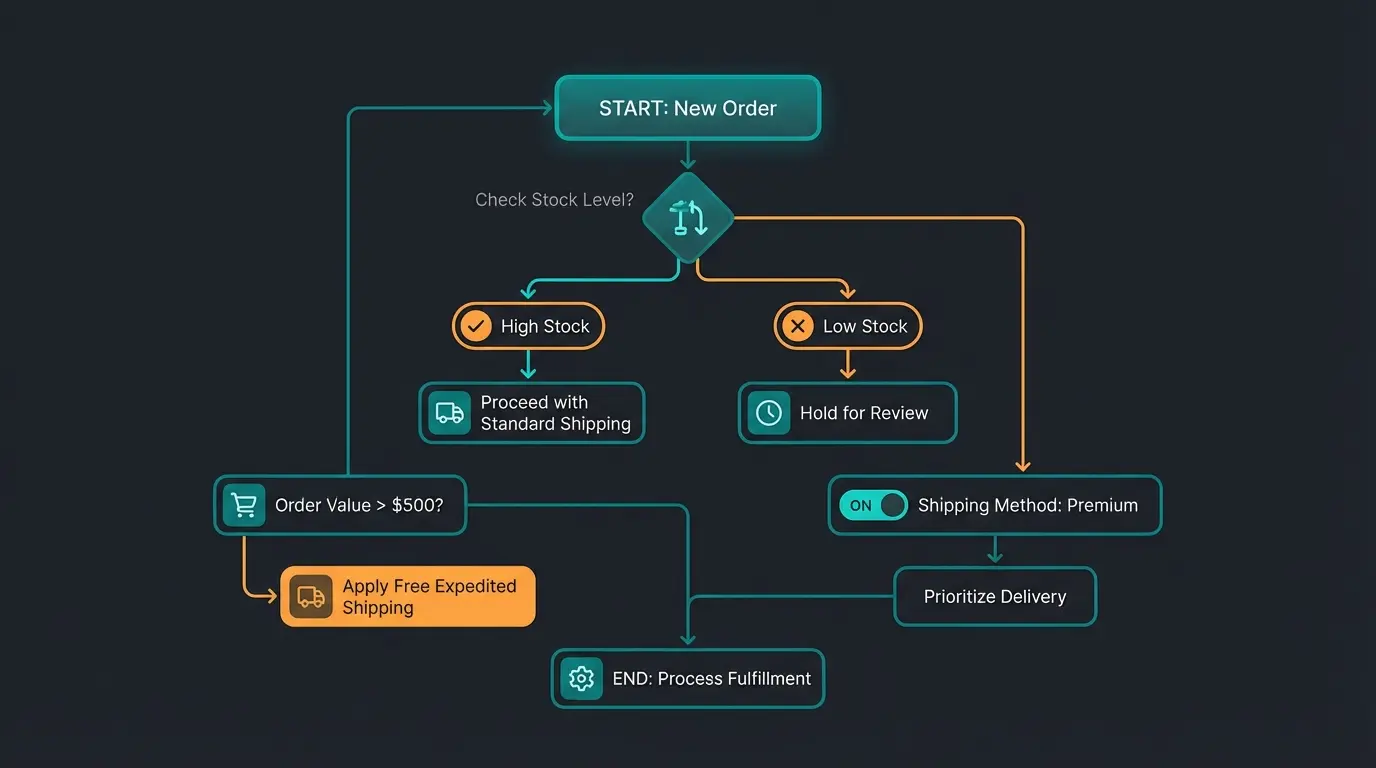
Scenario 3: Dynamic Display Based on Stock Levels
This is where it gets interesting for AI preparation. If a product is out of stock, 'UPS Express' makes no sense and leads to frustration ('I paid for Express, but you didn't ship for 3 days!'). This scenario is perfect for AI-powered product consultation that can explain shipping options contextually.
- Rule: Stock <= 0 AND Clearance = No
- Action: Disable UPS Express at checkout
Discover how AI-powered consultation can turn delivery questions into conversion opportunities while reducing support tickets by up to 60%.
Start Free TrialThe Game Changer: AI-Powered Logistics Communication
Here we leave the territory of standard tutorials. Most competitors explain how to print a label. We explain how to use shipping data to reduce support tickets and build customer loyalty.
The biggest problem in e-commerce support is the WISMO inquiry ('Where Is My Order?'). This is precisely where AI Chatbots transform customer service by providing instant, accurate responses to tracking questions.
The Gap in the Current System
Normally, the process looks like this:
- Shopware sends an email: 'Your order has been shipped.'
- It contains a cryptic code: `1Z999999999999`
- The customer clicks, sees 'Label created' and waits
- Two days later, nothing happens -> The customer writes an angry email
This gap is where AI eliminates waiting times and transforms the customer experience from frustrating to delightful.
The Solution: The AI Shipping Assistant
Imagine using an AI agent (based on LLMs like GPT-4) that has access to your Shopware data and the UPS API. This represents the future of AI-powered consultation in e-commerce logistics.
1. Pre-Purchase Consultation (Before the Sale)
A customer asks in the chat: 'I need this dress for a wedding on Saturday. Can you make it?'
- Without AI: 'Please check our shipping terms.' (Customer bounces)
- With AI: The agent checks: Is the product in stock? (Shopware data) What's the current UPS delivery forecast for the customer's zip code? (UPS API) When is the warehouse cut-off time?
- AI Response: *'If you order within the next 2 hours and select UPS Express, we guarantee delivery by Friday. Shall I add the dress to your cart?'*
This level of service is exactly what AI Product Consultation delivers in real-world scenarios, turning hesitant shoppers into confident buyers.
2. Proactive Disruption Management (Post-Purchase)
The AI monitors UPS status codes in the background.
- Status: `Exception - Weather Delay`
- Action: The AI proactively sends a WhatsApp or email: 'Hello Anna, UPS just informed us that there's a 24-hour delay due to storms in your area. Your package will now arrive on Thursday. We apologize for the inconvenience!'
- Result: The customer feels cared for instead of ignored. No support request needed.
3. Avoiding 'Oops!' Moments
When a customer asks: 'Why isn't my tracking working?', the AI can analyze the status.
- Analysis: Status is 'Label Created' but no scan for 48 hours
- Response: 'It looks like UPS hasn't scanned the package yet, even though it left our warehouse. I'm immediately opening an investigation for you.'
Decrease in 'Where is my order?' support tickets with proactive AI notifications
Higher checkout completion when AI confirms delivery dates pre-purchase
Instant answers to shipping questions without human intervention
Positive feedback rate when AI handles delivery inquiries proactively
Troubleshooting: Common Problems and Solutions
Even with the best AI, technical hurdles exist. Here are solutions for the most common 'Shopware UPS' problems discussed in forums. These AI integration tips will help you avoid common pitfalls.
Problem 1: The Tracking Link Is Missing from the Email
A classic issue. You've set up the shipping method, but the customer only receives the code, not a clickable link.
Solution: You need to customize the email template in Shopware. According to Shopware documentation, proper template configuration is essential for tracking link display.
- Navigate to Settings > Email Templates
- Select 'Delivery status entry: Shipped'
- Add the following Twig code to dynamically generate the correct link for UPS
Use this Twig code snippet as documented in the Shopware developer resources:
```twig {% for delivery in order.deliveries %} {% for trackingCode in delivery.trackingCodes %} {% if "1Z" in trackingCode %} {# UPS codes usually start with 1Z #} <p>Track your UPS package here: <a href="http://wwwapps.ups.com/WebTracking/processInputRequest?TrackNumber={{ trackingCode }}"> {{ trackingCode }} </a></p> {% else %} {# Fallback for other carriers #} Tracking Code: {{ trackingCode }} {% endif %} {% endfor %} {% endfor %} ```
Problem 2: Hard Validation Error for Addresses
UPS is very strict with addresses. 'Main St.' instead of 'Main Street' can sometimes cause errors if the API is set to 'Street Level Validation'.
Problem 3: The Double Meaning of 'Oops!'
Many users search for 'Shopware Ups error' and actually mean the generic error message 'Oops! An error occurred'. As noted in troubleshooting guides from 8mylez and Shopware Community, this is a common source of confusion.
- Quick Fix: If you see this error, don't look in the shipping settings. Go to the log files (`var/log/prod-....log`) on your server. Usually it's a plugin conflict or a missing database field after an update.
Problem 4: Multi-Parcel Shipments Not Showing All Links
When orders require multiple packages, some tracking links may not display correctly in customer emails.
- Cause: Default email templates often only reference the first tracking code
- Solution: Modify your Twig template to loop through all tracking codes as shown in the code snippet above
- Pro Tip: Use the forEach loop to ensure every parcel's tracking information reaches the customer
Native vs. Multi-Carrier vs. AI: Complete Comparison
To help you choose the right approach, here's a comprehensive comparison that highlights where AI consultation adds unique value:
| Feature | Native UPS Plugin | Sendcloud/Outvio | AI Consultation Layer |
|---|---|---|---|
| Label Printing | ✓ | ✓ | N/A (uses existing) |
| Tracking Link | ✓ | ✓ | ✓ Enhanced |
| Predictive Delivery Date | ✗ | Limited | ✓ Real-time calculation |
| Natural Language Answers | ✗ | ✗ | ✓ Full conversation |
| Pre-Purchase Advice | ✗ | ✗ | ✓ Converts browsers to buyers |
| Proactive Delay Notifications | ✗ | Basic email | ✓ Personalized messaging |
| 24/7 WISMO Handling | ✗ | ✗ | ✓ Instant responses |
| Integration Effort | Medium | Medium | Low (API layer) |
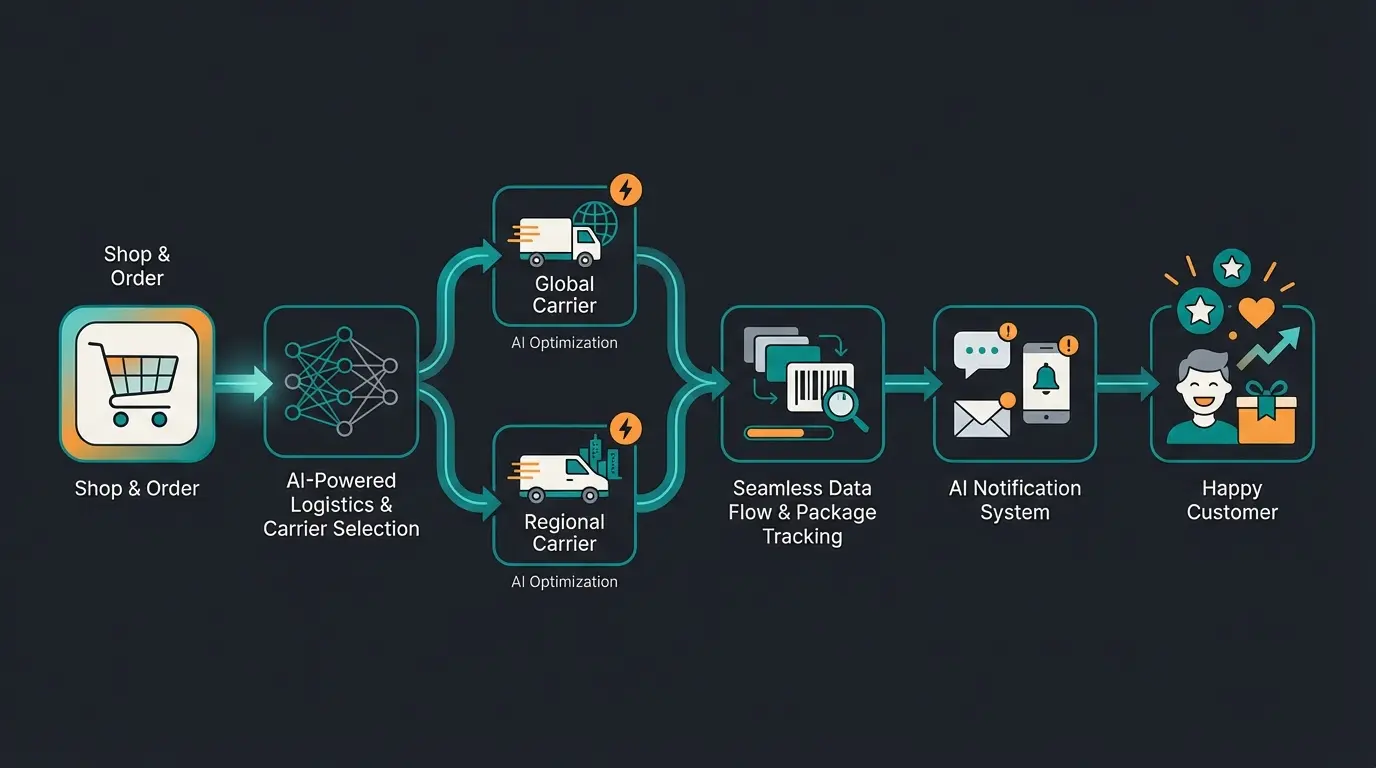
The Journey of a UPS Package in Shopware
Understanding the complete data flow helps you identify where AI adds the most value:
Customer completes checkout, shipping method (UPS Standard/Express) is selected
Shopware plugin transmits order and address data to UPS servers via OAuth 2.0
Shipping label created, tracking number returned to Shopware database
AI agent monitors UPS tracking status codes in real-time via API integration
AI translates status codes into natural language updates via chat, email, or WhatsApp
If delays occur, AI informs customer before they ask and offers solutions
Frequently Asked Questions
UPS discontinued legacy API Access Keys in August 2024 and now requires OAuth 2.0 authentication. You need to register at the UPS Developer Portal to obtain a Client ID and Client Secret, then update your Shopware shipping plugin with these new credentials. Current versions of Pickware and Sendcloud already support OAuth 2.0.
'Oops! An error occurred' (often searched as 'Shopware Ups') is a generic Shopware error message unrelated to shipping. If you see this, check your server log files at var/log/prod-....log for plugin conflicts or database issues. For actual UPS carrier integration problems, check your shipping settings and API credentials.
An AI shipping assistant monitors UPS tracking status codes in real-time and proactively notifies customers about delivery updates, delays, or issues before they need to ask. This approach typically reduces WISMO inquiries by 60% while improving customer satisfaction through personalized, instant communication.
Choose Pickware if you want everything managed natively within Shopware and already handle warehouse logistics there – the data stays in your system, which is ideal for AI integration. Choose Sendcloud or Outvio if you ship internationally with multiple carriers and need automatic carrier selection based on destination and price.
After migrating to OAuth 2.0, contact your UPS Account Manager to explicitly enable your customer number for API access to negotiated rates. Without this activation, your checkout will display standard list prices that can be 30-40% higher than your actual contracted rates.
Conclusion: Technology Is the Foundation, Communication Is the Art
Integrating UPS into Shopware 6 is no longer rocket science thanks to mature plugins like Pickware or Sendcloud – provided you've completed the OAuth 2.0 migration.
But those who stop at the technical setup are leaving potential on the table. The real competitive advantage emerges when you liberate the data from your UPS interface and make it usable for your customers.
- Use the Rule Builder to strategically control shipping costs and incentivize larger orders
- Implement AI solutions that translate tracking data into understandable language and proactive updates
- Transform the question 'Where is my package?' into proof of excellent service that builds loyalty
The future of e-commerce logistics isn't just about getting packages from A to B faster – it's about communicating that journey in a way that delights customers and eliminates the anxiety of waiting. When your AI can answer 'Will it arrive by Saturday?' with a definitive yes and add the item to cart, you've turned shipping from a cost center into a conversion driver.
We don't just help with clean UPS integration – we develop the AI strategy that sets your shop apart from the competition. Reduce support tickets, increase conversions, and deliver Amazon-level service.
Book Your Free Consultation