
Why Product Data Structure Determines Your E-Commerce Success
Have you ever wondered why some products in online shops are found immediately and achieve high conversion rates, while others end up as digital shelf warmers? The answer often lies not in the product itself, but in the data structure. In the modern e-commerce landscape, simply filling out mandatory fields is no longer sufficient. Shopware 6 is far more than a simple input form for titles and prices; it's a complex relational database that—when properly fed—serves as the foundation for AI-powered product consultation, automated SEO rankings, and personalized customer experiences.
This guide doesn't just walk you through the technical clicks ("Where's the save button?"), but provides you with the strategic depth necessary to remain competitive in 2025 and beyond. We cover everything: from the basics of product creation to the new AI Copilot features, Spatial Commerce capabilities, and troubleshooting common issues. According to Shopware, understanding these fundamentals is essential for any successful e-commerce operation.
Of new product issues stem from missing sales channel assignments
Potential increase with AR and 3D product visualization
Better rankings with consultation-oriented properties vs. technical-only data
The Basics: Creating a Simple Product in 3 Minutes
Before we dive into strategic depth, the craftsmanship basics must be solid. Shopware 6 strictly distinguishes between creating a data record and its visibility. Many beginners fail because a product exists but remains unfindable in the frontend. This section provides your essential checklist for creating Shopware products successfully.
Step-by-Step to Your First Product
Navigate in your Shopware administration to Catalog > Products and click on Create Product. This straightforward process, as demonstrated in various YouTube tutorials, forms the foundation of your product management workflow.
General Information: The Mandatory Fields
Shopware doesn't always clearly mark mandatory fields, but without this data, the record cannot be saved. Here's what you absolutely need:
- Title: The product name (e.g., "Premium Hiking Backpack 40L")
- Product Number: Often automatically generated, but can be manually adjusted (important for ERP system synchronization)
- Manufacturer: Must be created beforehand under Catalog > Manufacturers or created directly in the dropdown
- Tax Rate: Select Standard (19%) or reduced (7%) depending on product type
Prices and Currencies Configuration
Shopware 6 works with intelligent gross/net logic. When you enter one value, the system automatically calculates the other based on the selected tax rate. You can fix prices for different currencies or use automatic exchange rate conversion. To display a "Was" price (MSRP), fill in the "List Price" field. The selling price must be lower than the list price for the red discount badge to appear in the frontend.
Stock and Delivery Time Settings
Managing inventory correctly ensures customer satisfaction and accurate availability displays:
- Stock: The physical inventory. When this falls to 0, the product is marked as "sold out" (depending on settings)
- Delivery Time: A mandatory field in many regions. Select options like "1-3 business days"
- Clearance Sale: Activate this switch if the product should no longer be orderable when stock reaches 0. If deactivated, the product falls into "pre-order" (backorder) mode
The Critical Step: Visibility and Assignment
This is where 80% of errors occur during initial product creation. A product requires three assignments to be visible:
- Sales Channel: Explicitly assign the product to your storefront sales channel (e.g., "My Shop"). Without this assignment, the product exists only in the backend
- Category: The product must be attached to a position in the category tree that is reachable in the menu (navigation)
- Active Switch: At the top right of the product window, the switch must be set to "Active"

Strategic Data Management: Properties & Variants
Most shop operators use properties and variants purely technically. However, to be AI-Ready, we need to rethink our approach. Data isn't just there to describe a product—it's there to solve customer problems through consultation. This is where your competitive advantage emerges when implementing digital product advice strategies.
Variants vs. Properties: The Strategic Difference
There's often confusion between these two terms. In Shopware 6, however, the separation is essential for filter logic and your shop's consultation competence. Understanding this distinction, as explained in Scope01's documentation, is fundamental to effective product data management.
| Feature | Variants | Properties |
|---|---|---|
| Definition | Physical differentiation of the item | Characteristics for filtering and consultation |
| Example | T-shirt in Size L, Color Red | Material: Cotton, Care: 30° Wash, Style: Casual |
| Impact | Creates its own SKU / inventory | Serves as filter in sidebar (faceted search) |
| Strategy | As few as necessary (reduce complexity) | As many as possible (data points for AI/search) |
The Variant Generator
Shopware 6 offers a powerful generator. Instead of creating each variant individually, follow this streamlined process as shown in Shopware's official documentation:
- Create groups under Properties (not in the product, but globally under Catalog > Properties) such as "Size" and "Color"
- In the product under the Variants tab, select these properties
- Click on Generate Variants
- Important: You can define price surcharges here (e.g., XXL costs +$2) or assign images (red image for red variant)
Why Properties Are the Heart of Product Consultation
Imagine a customer asks an AI-powered sales consultant in your shop: "I'm looking for a running shoe for muddy forest trails that's waterproof." If you've only maintained your products with "Size 42" (variant), the AI cannot respond effectively. However, if you've maintained properties like Use Area: Trail and Material Property: Gore-Tex/Waterproof, the system (or the classic filter) can play out exactly the right product.
Identify customer problems your products solve (e.g., "Best for beginners", "Professional grade")
Convert specifications into user benefits ("500W motor" → "Handles tough materials")
Organize properties into logical consultation groups under Catalog > Properties
Apply properties consistently across all relevant products for effective filtering
Future-Proofing Products: AI & Consultation Optimization
With updates to Shopware 6.6 and 6.7, the platform has made massive strides toward artificial intelligence. The Shopware AI Copilot is not a gimmick, but a tool for efficiency enhancement and data enrichment. According to IT Delight and Agiqon Shopware, these features represent a significant evolution in KI E-Commerce capabilities.
AI-Generated Product Descriptions
The "blank page syndrome" is a thing of the past. In the description field, you'll now find the AI Copilot. The workflow is straightforward: enter bullet points (e.g., "women's sneaker, white, vegan leather, comfortable, summer 2025"). The Copilot generates SEO-optimized flowing text. You save time and receive texts that are semantically rich, which in turn improves Google rankings. This capability, highlighted by EXWE and Rhiem Intermedia, transforms how you approach content creation for AI for higher rankings.
Extracting Properties from Descriptions
An often overlooked feature: If you have a good product description (e.g., copied from the manufacturer), the AI Copilot can analyze it and automatically suggest properties. The system recognizes "waterproof" in the text and suggests setting the property "Water Resistance: Yes". This closes the gap between unstructured text and structured database, as documented in Shopware's official resources.
Data Quality for LLMs (Large Language Models)
Remember: Your product data will soon be read not only by humans but by AI agents (Google Gemini, ChatGPT Search, Perplexity). Use Custom Fields for specific information that doesn't fit the standard (e.g., "Compatible with Model XY"). Write descriptions that answer questions ("What is this good for?"), not just list facts. Folio3 and Emizentech both emphasize the importance of this approach for modern e-commerce success.
| Aspect | Standard Product Data | AI-Ready Product Data |
|---|---|---|
| Description Focus | Lists specifications and features | Focuses on benefits and solutions |
| Property Usage | Only size, color, basic attributes | Includes use case, skill level, compatibility |
| Search Optimization | Basic keyword inclusion | Semantic richness, question-answering format |
| Consultation Capability | Limited filter functionality | Full AI/chatbot consultation support |
| Future Readiness | Works for current search | Optimized for LLM and voice search |
Discover how AI-powered product consultation can turn your optimized product data into 24/7 expert customer guidance and dramatically increase conversions.
Start Your Free TrialImages & Media: More Than Just Looking Good
An image says more than 1,000 words, but a 3D model says more than 1,000 images. Shopware is massively betting on Spatial Commerce, and understanding these capabilities is crucial for staying competitive with your Shopware AI consultation approach.
The Basics: Drag and Drop
In the Media tab, you can simply drag images in. SEO Tip: Name the files meaningfully before uploading (e.g., `nike-air-max-red-side.jpg` instead of `IMG_1234.jpg`). Shopware often takes the filename as alt text, which is crucial for Google Image Search.
The Game Changer: 3D Models and AR
Since Shopware 6.5/6.6, the system natively supports `.glb` files for 3D models, as detailed in Shopware's documentation. Upload a 3D model, and Shopware automatically generates a preview image (since version 6.7 via 3D Preview Generator). In the frontend, customers can rotate and examine the product from all angles.
On mobile devices, customers can scan a QR code or click a button to virtually project the product (e.g., an armchair) into their own living room using Augmented Reality (AR). Studies show that AR can significantly reduce return rates and boost conversion by up to 200%, making it a valuable addition to your AI Product Consultation strategy.

SEO & Meta Data: Handle It During Product Creation
Many shop operators ignore the SEO tab during creation and think "I'll do that later." Spoiler: They never do. Taking care of SEO during initial product setup is essential for AI consulting guide implementation and long-term visibility.
SEO URL Templates
Shopware generates URLs automatically based on templates (e.g., `{{ product.name }}/{{ product.productNumber }}`). Check under Settings > SEO whether the template fits your strategy. Often it's better to remove the product number from the URL to have "speaking URLs" (`/mens/sneaker/nike-air-max` instead of `/nike-air-max/12345`). This best practice is recommended by both Rhiem Intermedia and Firebear Studio.
Meta Title and Description
In the product's SEO tab, you can override these values. Your Meta Title should contain the main keyword and a purchase incentive (max. 60 characters). The Meta Description is your advertisement in Google search results—use the AI Copilot to generate a click-worthy summary. According to Webneo, this approach significantly improves click-through rates.
Canonical URLs for Variants
Important for variants! Decide whether all variants (Red, Blue, Green) should point to a main URL (e.g., the red variant) to avoid "Duplicate Content" issues with Google. Proper canonical URL management ensures your SEO efforts support your overall AI readiness strategy.
Advanced Pricing Rules & Rule Builder
A simple product has one price. A "sales-ready" product has a pricing strategy. Shopware 6 uses Advanced Pricing in combination with the Rule Builder for this purpose, as extensively documented by Firebear Studio.
Scenarios for Advanced Pricing
In the Advanced Prices tab, you can map complex logic:
- Tiered Pricing (Quantity Rules): 1 piece: $10.00, from 10 pieces: $9.00, from 50 pieces: $8.50. Tip: This is essential in B2B
- Customer Group Prices: "Dealer A" sees a different price than "End Customer B." This is controlled via rules (e.g., Rule: "Customer is in Dealer group")
- Currency-Dependent Prices: Set psychological price thresholds for different markets manually (e.g., $19.90) instead of using the odd exchange rate (e.g., $18.43)
The Rule Builder as Your Engine
The Rule Builder (Settings > Rule Builder) is the most powerful tool in Shopware, as highlighted by Kennersoft and Rhiem Intermedia. You can create rules like "Customer comes from USA" AND "Cart > $500". This rule can then be used in the product to dynamically adjust prices or shipping costs—perfect for implementing sophisticated digital product consultants strategies.
Cross-Selling & Dynamic Product Groups
Nobody likes to buy alone. Cross-selling increases average order value (AOV) and provides better customer experiences through relevant product suggestions.
Manual vs. Dynamic Cross-Selling
In the Cross Selling tab, you have two options according to Bay20 and Shopware:
- Manual: You statically select products (e.g., "Matching socks for this shoe"). Disadvantage: High maintenance effort
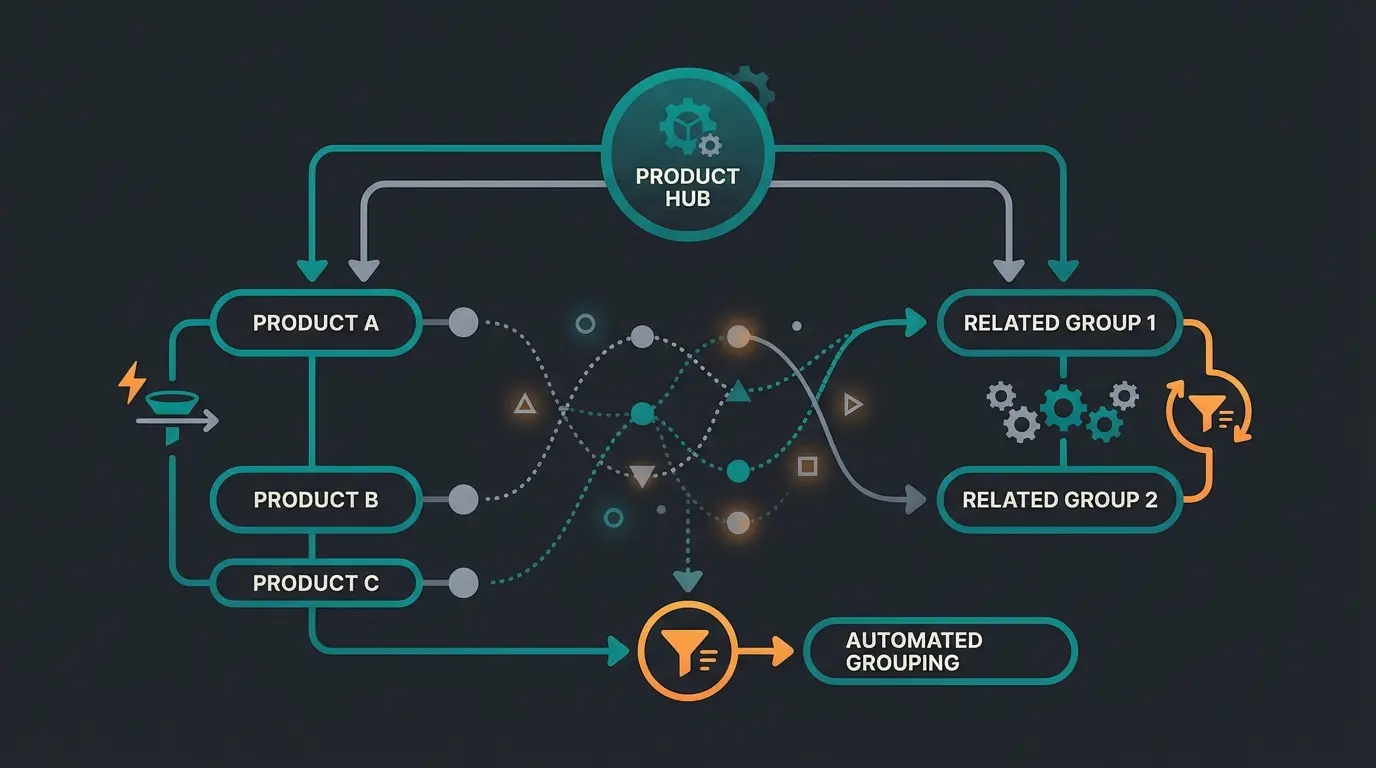
- Dynamic Product Groups: The "Blue Ocean" approach. Create a rule under Catalog > Dynamic Product Groups (e.g., "All products in category 'Accessories', Price < $20, Manufacturer = Same as main product"). Assign this group to the product
The advantage of Dynamic Product Groups: When you add new accessory items, they automatically appear in the cross-selling of all matching main products. That's pure automation, eliminating manual updates and ensuring your AI eliminates waiting for customers seeking related products.
Common Errors and How to Avoid Them
Even professionals stumble over these pitfalls. Here's your troubleshooting table for emergencies—keep this handy when implementing your product creation workflow.
| Symptom | Probable Cause | Solution |
|---|---|---|
| Product not visible in frontend | Missing sales channel assignment | Add storefront channel under "Visibility" in product settings |
| Product not visible (despite assignment) | Category not in navigation tree | Check if assigned category is defined as entry point in sales channel |
| Price shows $0.00 | Faulty inheritance with variants | Check if variants inherit price from main product or if price was explicitly set to 0 |
| Search doesn't find product | Search index not updated | Clear cache and rebuild index (Settings > System > Caches & Indexes) or console `bin/console dal:refresh:index` |
| Variant images incorrect | Wrong assignment in generator | Check in "Variants" tab > "Storefront Display" if images are correctly mapped to properties (e.g., color) |
Frequently Asked Questions About Shopware Products
The essential mandatory fields include: Title (product name), Product Number (can be auto-generated), Manufacturer (must exist in system), and Tax Rate. Additionally, for visibility, you need Sales Channel assignment, Category assignment, and the Active switch enabled.
Variants represent physical differences that create separate SKUs and inventory (like size L or color Red). Properties are characteristics used for filtering and consultation (like Material: Cotton or Style: Casual). Use variants sparingly for complexity reduction, but use properties extensively for AI and search optimization.
The most common causes are: missing sales channel assignment (80% of cases), category not defined as navigation entry point, or the Active switch being disabled. Check all three elements in your product settings under the Visibility section.
The AI Copilot can generate SEO-optimized product descriptions from bullet points, automatically extract and suggest properties from existing text, and help create meta titles and descriptions. It saves significant time while producing semantically rich content that improves search rankings.
Yes, since Shopware 6.5/6.6, the platform natively supports .glb files for 3D models. Customers can rotate products in 3D view, and mobile users can project products into their real environment using Augmented Reality, which can boost conversions by up to 200%.
Conclusion: Data Quality Is Tomorrow's Revenue Driver
Creating products in Shopware 6 is quickly learned from a technical standpoint. But the difference between a data record and a bestseller lies in the strategic use of fields. Those who today maintain their Properties cleanly, use Custom Fields for AI context, and integrate 3D models are building a shop that doesn't just list products, but advises customers through sophisticated AI-powered sales consultants.
You're creating the foundation for automation (Dynamic Product Groups) and visibility (SEO & Google Shopping). The investment in proper data structure pays dividends across every customer touchpoint—from initial search to final purchase decision.
Your Next Steps
- Review your Top 10 products: Are the properties maintained with a consultation-oriented approach?
- Test the AI Copilot for one product description to experience the efficiency gains
- Create a Dynamic Product Group for your cross-selling to eliminate manual work
- Evaluate your product images for SEO-friendly naming conventions
- Consider adding 3D models for your highest-value products
Have you structured your product data perfectly? Then your shop is ready for the next level of automation and customer consultation.
Your optimized product data is the foundation. Now let AI-powered consultation turn that data into personalized buying guidance that works 24/7, increasing conversions while reducing support load.
Discover AI Product Consultation