
The Speed vs. Feature Dilemma in E-Commerce
In e-commerce, there's a constant conflict that every shop owner faces. On one side, Google and impatient users demand lightning-fast load times. Every millisecond of delay demonstrably costs revenue. On the other side, the market demands increasingly intelligent features—personalized recommendations, live shopping experiences, and above all: AI-powered product consultation.
Many shop operators face a seemingly impossible choice: A lean, fast shop that's functionally "dumb"? Or an intelligent shop that collapses under the weight of dozens of plugins and scripts? According to Shopware, the 6.6 release has fundamentally changed this equation.
The good news for 2025: You no longer have to choose. With the release of Shopware 6.6 and modern web technologies, the playing field has changed completely. It's now possible to run a Shopware shop with a Google Lighthouse Score of 90+ (Mobile) while simultaneously deploying highly complex AI tools for consultation conversations.
This article is your technical and strategic guide to not just fixing Shopware page speed, but using it as a competitive advantage—while wisely investing your "performance budget" into revenue-generating AI that transforms how customers discover products in your store.
The Foundation: Hosting & Server Stack
Before we discuss AI or frontend optimization, the foundation must be solid. No plugin in the world can save a shop running on weak hardware. For Shopware 6 in 2025, the following minimum standards apply for high-performance setups that can support advanced features like AI consulting in e-commerce.
Why Budget Hosting Kills Shopware Performance
Shopware 6 is a complex Symfony application. Shared hosting or small VPS solutions inevitably lead to timeouts and sluggish admin areas. As noted by Hypernode, database operations are often the bottleneck, and slow storage systems massively impact performance.
- CPU: Single-core performance is king. Look for modern processors (e.g., AMD EPYC or Intel Xeon Gold) that deliver consistent compute power
- RAM: Minimum 16 GB for the web server, preferably 32 GB to have sufficient buffer for PHP workers and caching layers
- Storage: NVMe SSDs are mandatory. Database operations are often the bottleneck; slow hard drives massively slow everything down
PHP 8.2+ and JIT Compiler Benefits
With Shopware 6.6, PHP 8.2 is the minimum requirement as confirmed by Shopware's official documentation. This is actually beneficial because each new PHP version brings performance improvements that directly impact your shop's responsiveness.
Database Tuning Essentials
Use MySQL 8.0 or MariaDB 10.11 for optimal compatibility and performance. Ensure that your database server has enough RAM to keep the entire index in working memory (InnoDB Buffer Pool Size). This single configuration change can dramatically improve query response times across your entire shop, which is especially important when running Shopware 6 chatbots that query product data in real-time.
Caching Strategy: The Holy Trinity of Performance
When you search for Shopware page speed optimization, you'll repeatedly encounter three terms: HTTP Cache, Redis, and Varnish. Here's why you need all three and how they work together to create the performance foundation that enables advanced features like AI product consultation.
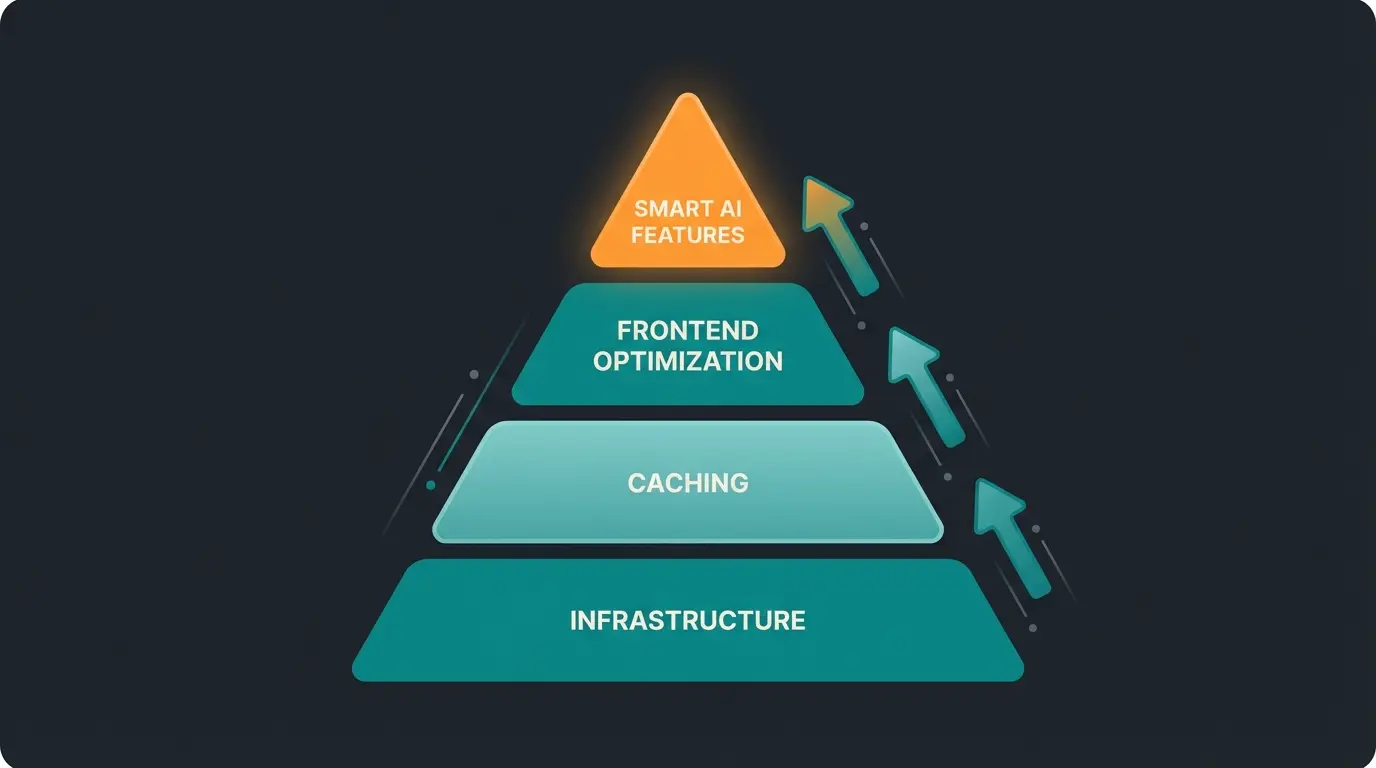
Hosting with NVMe SSDs, dedicated CPU, PHP 8.2+, MySQL 8.0/MariaDB 10.11
Varnish as reverse proxy for HTML, Redis for sessions and data objects
Shopware 6.6 async JavaScript, WebP/AVIF images, CSS/JS minification
AI Product Consultant loaded asynchronously, personalization engines
Shopware HTTP Cache (The Standard)
Shopware includes an integrated HTTP cache that stores finished HTML pages. This is good for basic caching needs, but for high-traffic shops it's often not fast enough because PHP is still involved in serving cached content. Think of it as the starting point, not the finish line.
Redis: The Turbocharger for Data
Redis is an in-memory data store that's essential for reducing database queries. According to iCreative Technologies, proper Redis configuration can dramatically reduce response times. In Shopware, you should configure Redis for two critical functions:
- Session Storage: So that shopping carts and login status load lightning-fast without hitting the database
- Object Cache: Stores results of complex database queries, reducing load on your MySQL server
Here's a sample configuration snippet for your shopware.yaml:
```yaml shopware: cache: adapter: redis cart: redis_url: 'redis://localhost:6379' ```
Varnish: The Reverse Proxy Powerhouse
Varnish is the most important lever for Time to First Byte (TTFB). It sits in front of your web server and delivers static pages in milliseconds without Shopware or PHP ever being "woken up." This is the secret weapon that enables you to run sophisticated AI-driven product consultation without sacrificing load times.
Important update for Shopware 6.6: The configuration for Varnish has changed. The old key `storefront.reverse_proxy` is deprecated. According to Shopware's official documentation, you should now use `shopware.http_cache.reverse_proxy`.
Here's the best practice configuration for your config/packages/storefront.yaml:
```yaml shopware: http_cache: reverse_proxy: enabled: true ban_method: "BAN" hosts: ["http://varnish-host"] use_varnish_xkey: true ```
The Silent Killer: Third-Party Scripts & Core Web Vitals
You've optimized your server and activated caching. Yet Google PageSpeed Insights still complains? The reason often lies in the frontend: third-party JavaScript. This is where many shops fail to properly optimize Shopware product pages for performance.
Main Thread Blocking: The Hidden Problem
Classic chatbots, tracking pixels, and review widgets are often loaded as huge JavaScript packages directly in the `<head>` or at the beginning of the `<body>`. The problem: The browser must download, parse, and execute this JavaScript. During this time, the main thread is blocked. The user sees the page but cannot click or scroll—a terrible user experience that directly impacts conversion rates.

INP: The New Google Performance Metric
Since March 2024, Google has replaced FID (First Input Delay) with INP (Interaction to Next Paint) according to DebugBear. INP measures how quickly the page responds to an interaction (click, keypress). This metric is especially critical for shops using interactive features like AI Chatbots for customer service.
Consider this scenario: A user clicks "Add to Cart." With bad INP, the browser is still busy loading a 2MB chatbot script. The click isn't processed until 500ms later. The user is frustrated and may abandon their purchase. With good INP, the main thread is free. The click is processed immediately (<200ms) as documented by web.dev.
Good interaction responsiveness threshold
Mobile visitors leave if pages take >3 seconds
Per second of additional page load time
The solution is not to give up on features, but to load them intelligently. Modern approaches to Shopware SEO for product pages must account for both performance and functionality.
Shopware 6.6 & Asynchronous Loading: Your Edge
Here lies your strategic advantage. Shopware 6.6 has massively cleaned up under the hood and now enables asynchronous JavaScript loading as detailed in Shopware's performance documentation. This capability is what makes running intelligent Shopware AI solutions possible without performance penalties.
The End of the Monolithic all.js File
Previously (up to SW 6.5), all JavaScript plugins were compiled into a massive `all.js` file. Regardless of whether the user was on the homepage or in checkout, they had to load the code for all functions. This approach was fundamentally inefficient and created unnecessary performance bottlenecks.
Dynamic Imports: The New Era
With Shopware 6.6, developers can register JavaScript plugins so they're only loaded when needed. According to Shopware's developer documentation, here's how the technical implementation works:
Instead of importing the plugin statically:
```javascript import MyPlugin from './my-plugin'; PluginManager.register('MyPlugin', MyPlugin, '[data-my-plugin]'); ```
You now use Dynamic Imports:
```javascript PluginManager.register('MyPlugin', () => import('./my-plugin'), '[data-my-plugin]'); ```
The effect: The browser only loads the script for your plugin when it finds the selector `data-my-plugin]` in the HTML code. Even better: With modern "Intersection Observers," you can control scripts to load only when the element scrolls into the visible area. This is the technical foundation that enables sophisticated [AI product finder implementations.
What This Means for AI Tools
This is the key to integrating powerful AI consultants without killing performance. The contrast between approaches is stark:
- Bad approach: A chatbot script loads globally and blocks page construction (LCP & INP suffer)
- Good approach (Shopware 6.6 Way): A tiny "loader script" checks if the user needs help. Only when the user becomes active (or a certain time has passed) is the heavy AI logic loaded asynchronously
Discover how our AI product consultant delivers intelligent recommendations without impacting your Shopware page speed. Get a personalized demo for your store.
Request Your Free DemoCase Study: High-Performance AI Product Consultation
Let's debunk the myth that AI makes your shop slow. It all comes down to implementation. We compare a classic "support bot" with a modern, Shopware-optimized AI solution that a Shopware full service agency would implement.
Static Bot vs. Integrated AI Comparison
| Feature | Classic Chatbot/Plugin | Optimized AI Solution |
|---|---|---|
| Load Method | Synchronous/Render-Blocking (often in <head>) | Asynchronous/Deferred (via Dynamic Import) |
| Initial Script Size | Large (1MB - 2MB), loads everything immediately | Minimal (<50KB), loads only the trigger |
| Impact on LCP | Negative: Delays rendering of largest element | Neutral: No influence on visual loading |
| Impact on INP | High: Blocks main thread during parsing | Low: Loads during browser idle state |
| Shopware Integration | Often generic iFrame, no API connection | Native integration, uses Shopware Proxy/API |
| User Experience | Pop-up annoys immediately on load | Available when needed, unobtrusive |
The Concept of Perceived Performance
For the user, the shop with the optimized solution feels instant. The heavy lifting (loading the language model, product data analysis) happens in the background or only at the moment the user types. Since the user naturally pauses briefly while typing, the AI's loading time isn't perceived as a delay. This is the same principle that powers effective AI product consultation across modern e-commerce platforms.
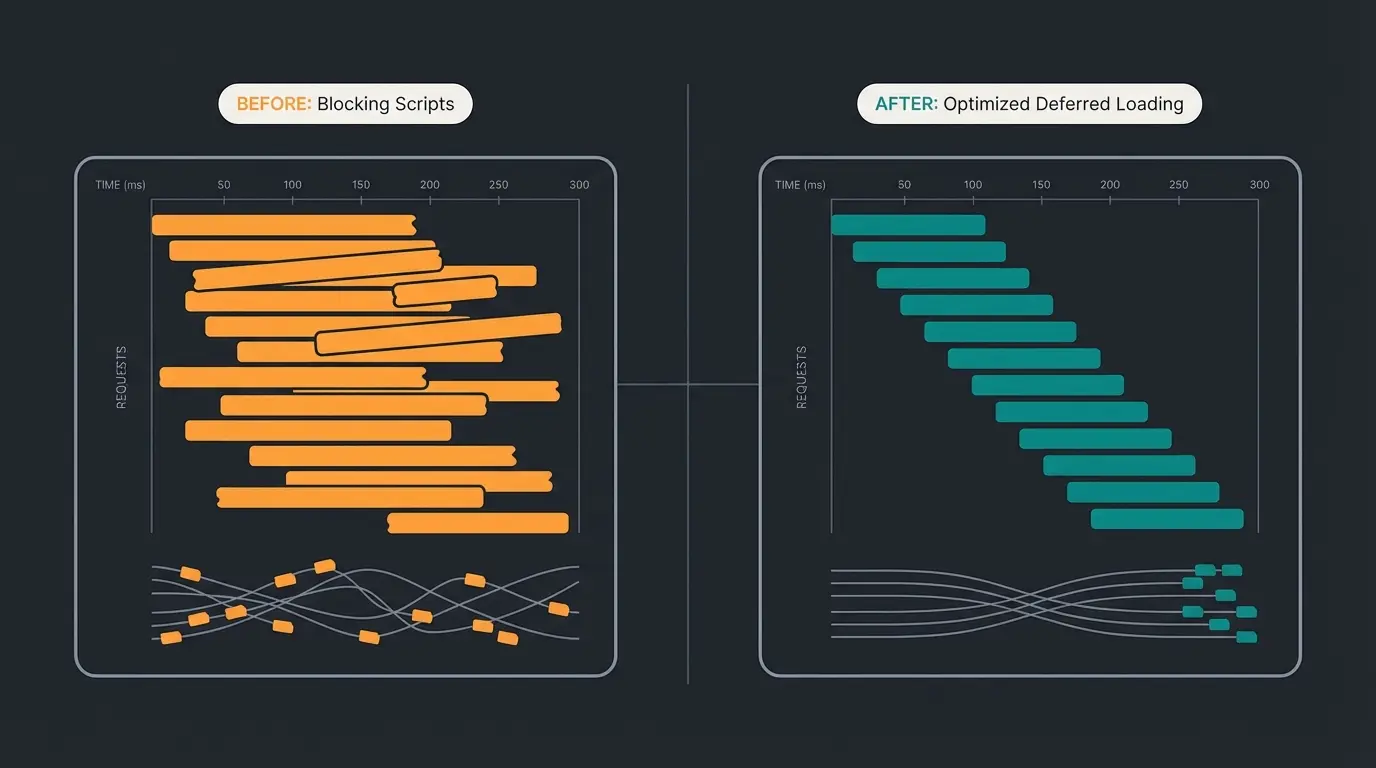
A look at Chrome Developer Tools (Network tab) reveals the truth. In an unoptimized shop, you see a waterfall of red bars right at the start. Images, CSS, JS, and the chatbot all compete simultaneously for bandwidth. The browser doesn't know what's important. Result: LCP at 3.5s, TBT (Total Blocking Time) at 800ms.
In a Shopware 6.6 shop with async AI, the first bars are only HTML and critical CSS (Varnish delivers immediately). Then comes the LCP image (prioritized). The waterfall is "empty" until the page is interactive. Only then (or upon interaction) does the script for the AI consultant appear. Result: LCP at 1.2s, TBT at 50ms.
The Performance Budget Strategy: A Complete Checklist
The Performance Budget Strategy Checklist
Instead of blindly deleting plugins, use this strategy to create room for innovation. Think of speed as a currency you can spend wisely on revenue-generating features.
Step 1: Clean Up the Bloat
- Review all installed plugins: Are they actually being used? Each unused plugin is wasted performance
- Disable the Shopware Admin Worker in your `shopware.yaml` and use system cronjobs/CLI workers instead. The Admin Worker consumes performance when an admin is logged in, as noted by Mageplaza and FireBear Studio
- Use tools like Frosh Tools to identify slow plugins that are dragging down your performance
Here's the configuration to disable the Admin Worker:
```yaml shopware: admin_worker: enable_admin_worker: false ```
Step 2: Optimize Static Assets
- Activate WebP or AVIF conversion for all images as recommended in Shopware's media documentation
- Use Shopware's native Lazy Loading for images below the fold as detailed in Shopware's optimization guide
- Minify and combine CSS/JS files in production mode
Step 3: Activate Full Caching
- Is Varnish active and correctly configured? Check your hit rate regularly
- Is the shopping cart running through Redis? This is critical for cart persistence and speed
- Monitor cache invalidation patterns to ensure you're not clearing cache too frequently
Step 4: Invest Your Performance Budget in AI
- Implement your AI consultant with proper async loading patterns
- Ensure the script is loaded asynchronously or deferred to prevent main thread blocking
- Use Shopware 6.6's Dynamic Import capabilities if you're making custom adjustments
- Test performance before and after implementation to verify zero negative impact
Conclusion: Speed Is Not an End in Itself
A fast shop that sells nothing is useless. A slow shop that has great features gets abandoned by users. The art in 2025 lies in perfecting the technical foundation (Shopware 6.6, Varnish, Redis) so well that you can afford "heavy" features.
Think of load time as a budget. When you save on images and scripts, you can spend that budget on an AI Product Consultant that massively increases your conversion rate. Don't let anyone tell you that you have to sacrifice intelligence for page speed. With the right architecture, you can have both.
The shops that will win in 2025 and beyond are those that master this balance—delivering instant load times while offering the intelligent, personalized shopping experiences that modern consumers expect. Your competitors who remove features to achieve speed will lose to those who implement features intelligently.
Frequently Asked Questions
Not if implemented correctly. Modern AI solutions use asynchronous loading and dynamic imports available in Shopware 6.6. The AI script loads only when needed (e.g., when a user initiates a consultation), resulting in zero impact on your initial page load metrics like LCP and INP. The key is choosing solutions built with performance in mind rather than legacy chatbot widgets.
For high-performance Shopware 6, you need: dedicated CPU (AMD EPYC or Intel Xeon recommended), minimum 16GB RAM (32GB preferred), NVMe SSD storage, PHP 8.2+, and MySQL 8.0 or MariaDB 10.11. Shared hosting should be avoided entirely for production shops as it leads to unpredictable performance.
Varnish is a reverse proxy that sits in front of your web server and delivers cached pages in milliseconds without involving PHP or Shopware at all. This dramatically reduces Time to First Byte (TTFB). With XKey support in Shopware 6.6, Varnish can selectively invalidate only affected pages when content changes, maintaining high cache hit rates.
INP (Interaction to Next Paint) replaced FID as Google's Core Web Vital for responsiveness in March 2024. It measures how quickly your page responds to user interactions like clicks. For e-commerce, poor INP means frustrated users who can't add items to cart quickly, directly impacting conversion rates. Heavy chatbot scripts that block the main thread are the primary culprit.
Use tools like Frosh Tools within Shopware to identify slow plugins. Additionally, Google PageSpeed Insights' Total Blocking Time (TBT) metric helps identify third-party scripts causing issues. Check your browser's Network tab waterfall to see which scripts are render-blocking and loading synchronously when they should be deferred.
See how our AI product consultant adds revenue without impacting your Lighthouse score. Get a personalized performance analysis and demo for your store.
Start Your Free Trial