
Why Your Shopware Backup Strategy Can Make or Break Your Business
Imagine it's Black Friday. Traffic on your Shopware store is reaching peak levels. Your AI-powered sales consultants are conducting hundreds of customer conversations simultaneously. And then: silence. A faulty plugin update, a server crash, or a cyberattack brings everything to a halt.
In that moment, it's not your marketing that determines your company's future—it's your Shopware backup strategy.
For modern e-commerce businesses, especially those relying on AI personalization and complex data structures, a simple "copy files" approach is no longer sufficient. When your AI loses its "memory" of customer preferences, you don't just lose revenue—you lose valuable intelligence that took months to build.
This guide takes you deep into the world of Shopware data backup—from manual developer methods and plugins to enterprise strategies following the 3-2-1 rule. According to Backblaze, this methodology remains the gold standard for protecting business-critical data.
The Fundamentals: What Actually Needs to Be Backed Up?
Before we discuss tools, we need to understand the anatomy of a Shopware 6 installation. A backup is only as good as the data it contains. Many shop operators forget critical components necessary for complete disaster recovery.
1. The Filesystem
This is where the program code and static assets reside. Understanding what needs backing up here is crucial for any Shopware 6 support strategy.
- Core & Plugins: The actual Shopware code (`/vendor`, `/custom/plugins`).
- Media: Product images, PDFs, and documents (`/public/media`). Note: For large shops, these often reside on external storage (S3, CDN) and must be handled separately.
- Configuration Files: The `.env` file is the heart of your installation. It contains database credentials and API keys. Without it, the shop is useless.
- Theme Assets: Compiled CSS/JS files (can often be regenerated, but save time during restore).
2. The Database (MySQL / MariaDB)
This is the "brain" of your shop, containing everything from product data to customer interactions.
- Catalog Data: Products, categories, prices.
- Transaction Data: Orders, customer accounts.
- System Configuration: Sales channel settings, plugin configurations.
- AI & Interaction Data: If you use AI tools for Shopware AI consultation, this is where logs, vector data, or customer preferences essential for personalization often reside.
3. External Dependencies (The Often Forgotten Layer)
Modern shops are not islands. They connect to numerous external services that also need consideration in your backup planning.
- Elasticsearch / OpenSearch Indices: Can be rebuilt, but takes hours for large catalogs.
- Redis Cache: Volatile, usually doesn't need backing up.
- Third-Party Configurations: Settings in your ERP, PIM, or with your AI provider that must be synchronized with Shopware.
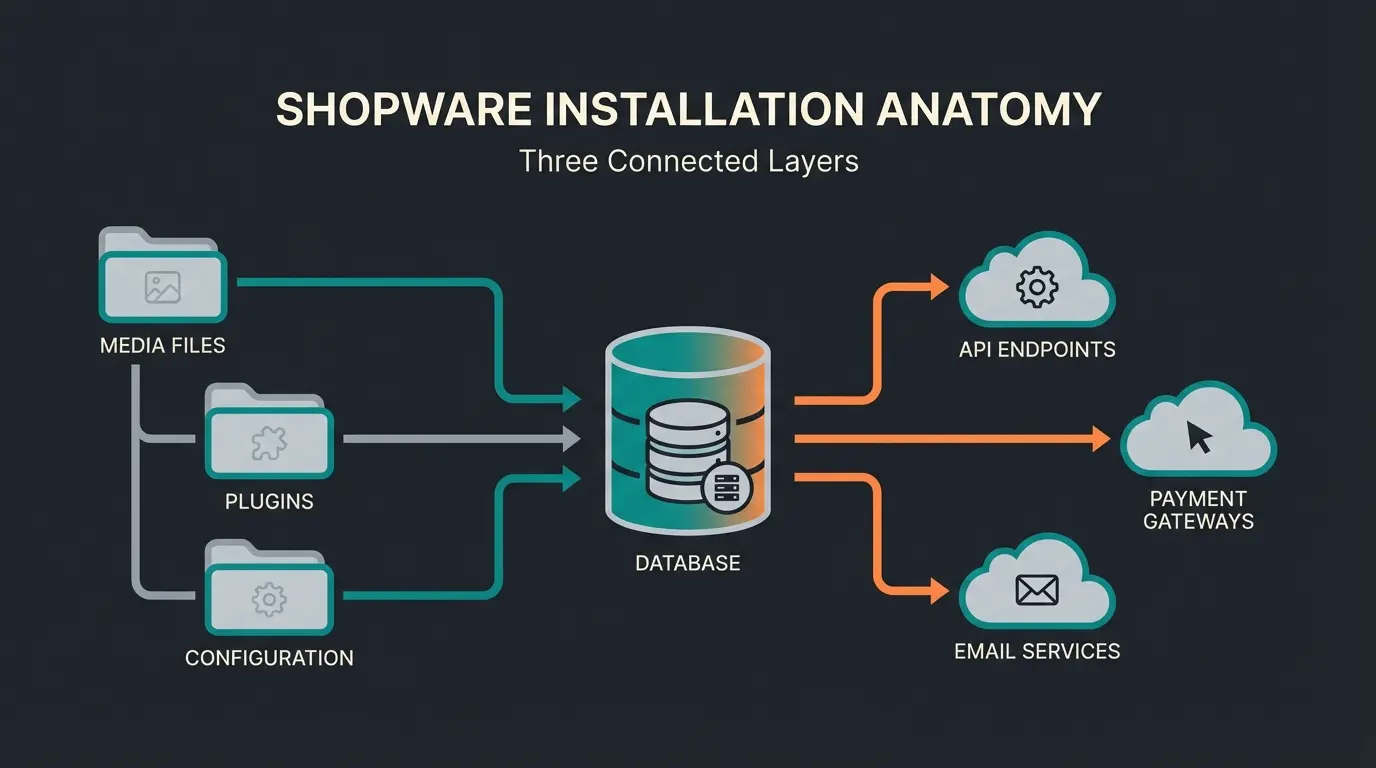
Filesystem, Database, and External Dependencies must all be backed up
Time between last backup and crash if only doing nightly backups
Without proper backup, AI consultation history is completely lost
Method 1: The Developer Way (Manual Backup via SSH)
For developers and technically savvy shop operators, the console (CLI) path is often the safest and most flexible. It offers full control and costs no license fees. This approach is particularly valuable when working with a Shopware full service agency that can implement custom backup scripts.
Step 1: Database Backup (The Right Dump)
A simple `mysqldump` is often not sufficient for Shopware 6, as problems with `DEFINER` statements or special data types (Binary Blobs) can occur. As noted by Laenen.me, proper flags are essential for Shopware 6 compatibility.
Here is the "gold standard" command for a clean Shopware 6 dump:
```bash mysqldump -u [DB_USER] -p[DB_PASSWORD] -h [DB_HOST] [DB_NAME] \ --hex-blob \ --single-transaction \ --routines \ --no-tablespaces \ --column-statistics=0 \ | sed -e 's/DEFINER=[^]\/\/' \ | gzip > shopware_backup_$(date +%F).sql.gz ```
Step 2: File Backup (Smart Exclusion)
Don't blindly back up everything. Folders like `var/cache` unnecessarily inflate the backup and often cause permission problems during restore. According to Winkelwagen.de, smart exclusions can reduce backup size by up to 70%.
```bash tar --exclude='./var/cache/' \ --exclude='./var/log/' \ --exclude='./public/thumbnail/*' \ --exclude='./node_modules' \ -czf shopware_files_$(date +%F).tar.gz . ```
Pros and Cons of the Manual Method
| Advantage | Disadvantage |
|---|---|
| Free: No plugin fees required | High Effort: Requires SSH knowledge |
| Control: You know exactly what's happening | Error-Prone: A typo can ruin the backup |
| Scriptable: Ideal for cronjobs | No GUI: Not suitable for non-technical shop managers |
Method 2: Plugins & Automation
Those who don't want to work in the console daily turn to plugins. These offer convenience and often direct cloud connections. This is especially relevant when comparing platforms like Shopware vs Shopify, where backup options differ significantly.
Recommended Solutions
1. Shopware Backup Plugin (SWPA)
This plugin is a classic in the Shopware Store. It enables scheduled backups of database and files. According to the Shopware Store listing, its key feature is support for uploads to Amazon S3, FTP, or SFTP—essential for offsite backup. The limitation: For very large shops (100GB+), PHP timeouts can be a problem; here the CLI method is more stable.
2. StageWare® (Staging & Backups)
Actually a tool for staging environments, but excellent for backups. As detailed in the Shopware Store, it creates a copy of the live shop at the push of a button. If an update goes wrong, you have not just a backup, but a fully functioning environment. It greatly simplifies backup testing, since the "restore" is essentially creating the staging environment.
3. Hosting Snapshots (The "Lazy" Insurance)
Hosters like Mittwald offer daily snapshots. According to Acronis, these server-level backups provide an additional safety layer. Important: Never rely on these alone. If you need to switch hosts or your account gets locked, you won't have access to these backups. They're a supplement, not a replacement.
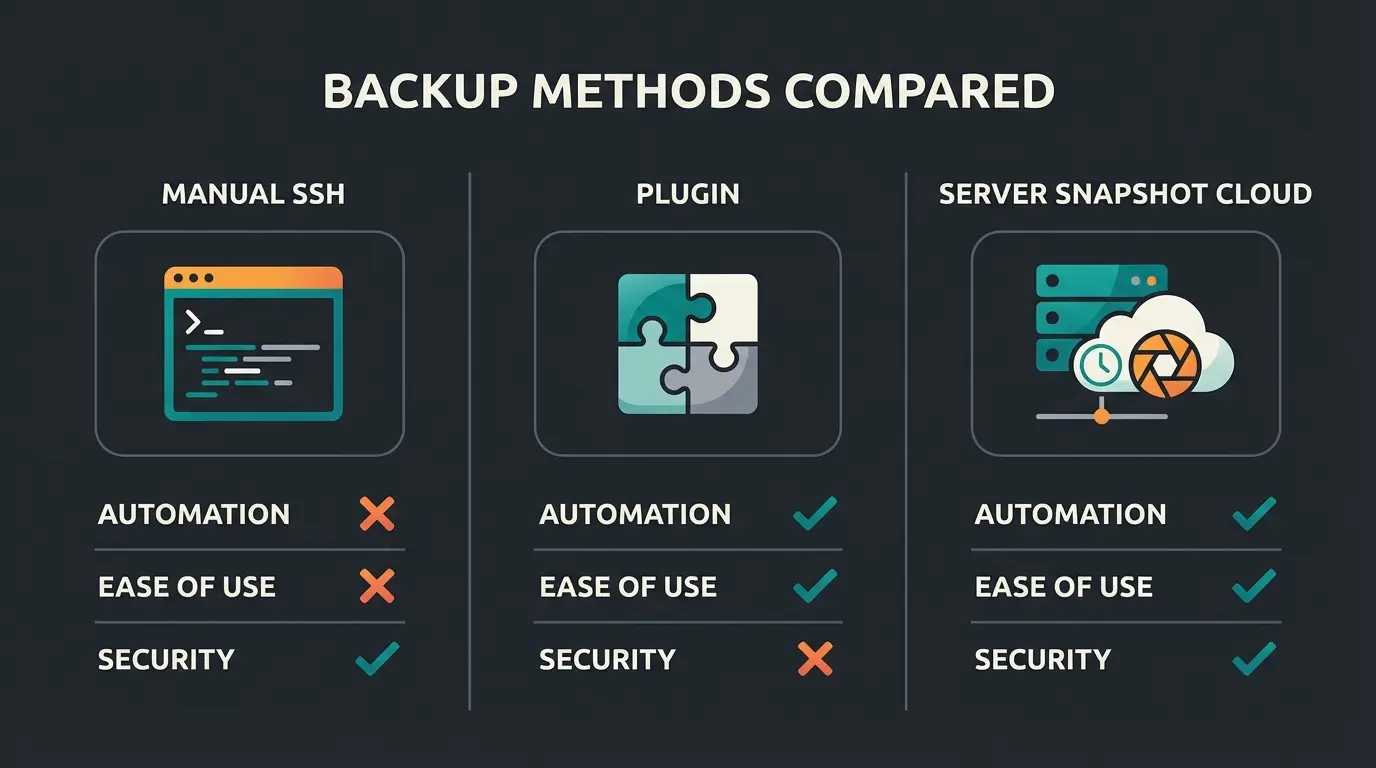
Determine if your team can handle CLI commands or needs GUI-based solutions
Large shops (100GB+) may need manual methods due to PHP timeout limitations
High-transaction shops need hourly backups; plugins may struggle with this
Choose cloud providers (S3, GCS) for redundant, geographically distributed backups
Advanced Strategy: The 3-2-1 Rule for Enterprise Shops
For shops generating significant revenue or processing complex AI data, "one backup on the server" is grossly negligent. IT security swears by the 3-2-1 rule as documented by Stackscale.
The Concept
- 3 copies of your data: (1x live system, 2x backups)
- 2 different media types: (e.g., server hard drive and cloud object storage)
- 1 copy offsite: (Physically separated from the shop's data center)
Implementation for Shopware
Implementing the 3-2-1 rule for your Shopware store requires a systematic approach. This is particularly important when you want to optimize Shopware product pages and protect all that optimization work.
- Copy 1 (Local): A nightly dump on the web server (for quick restore on small errors).
- Copy 2 (Offsite/Cloud): Automated upload of the dump to AWS S3, Google Cloud Storage, or Wasabi.
- Copy 3 (Immutable): A backup that cannot be deleted or modified for a certain period (e.g., 7 days) using Object Lock. This is the best protection against ransomware that often tries to encrypt backups as well.
| Backup Type | Cost | Speed | Restore Time | AI-Data Safe? | Offsite Capable |
|---|---|---|---|---|---|
| Manual Backup | Free | Variable | 30-60 min | Yes (if configured) | Manual upload |
| Hosting Snapshot | Included | Fast | 15-30 min | Partial | No |
| Backup Plugin | €50-200/year | Automated | 30-60 min | Partial | Yes (S3/FTP) |
| Enterprise Strategy | €200+/year | Automated | 15-30 min | Yes | Yes (multi-region) |
Your AI-powered product consultations generate valuable customer insights. Don't risk losing months of learned preferences and interaction data. Get expert guidance on enterprise-grade backup strategies.
Get AI ConsultationThe Hidden Danger: Restore & Data Gaps
Most guides end at backup. But the real crisis begins at restore. Two dangers lurk here that are rarely discussed, yet they're critical for maintaining excellent Shopware customer service during recovery.
1. The Gap Problem (Data Loss During Downtime)
Imagine your shop crashes at 2:00 PM. Your last backup is from 3:00 AM.
- RPO (Recovery Point Objective): You lose 11 hours of data (orders, new customers, AI learning progress).
- Solution: Increase the frequency of database backups (e.g., every 1-2 hours) or use "Point-in-Time Recovery" (PITR) if your host offers this for MySQL.
Understanding these concepts is essential when setting up proper Shopware sitemap configuration and other technical aspects of your store.
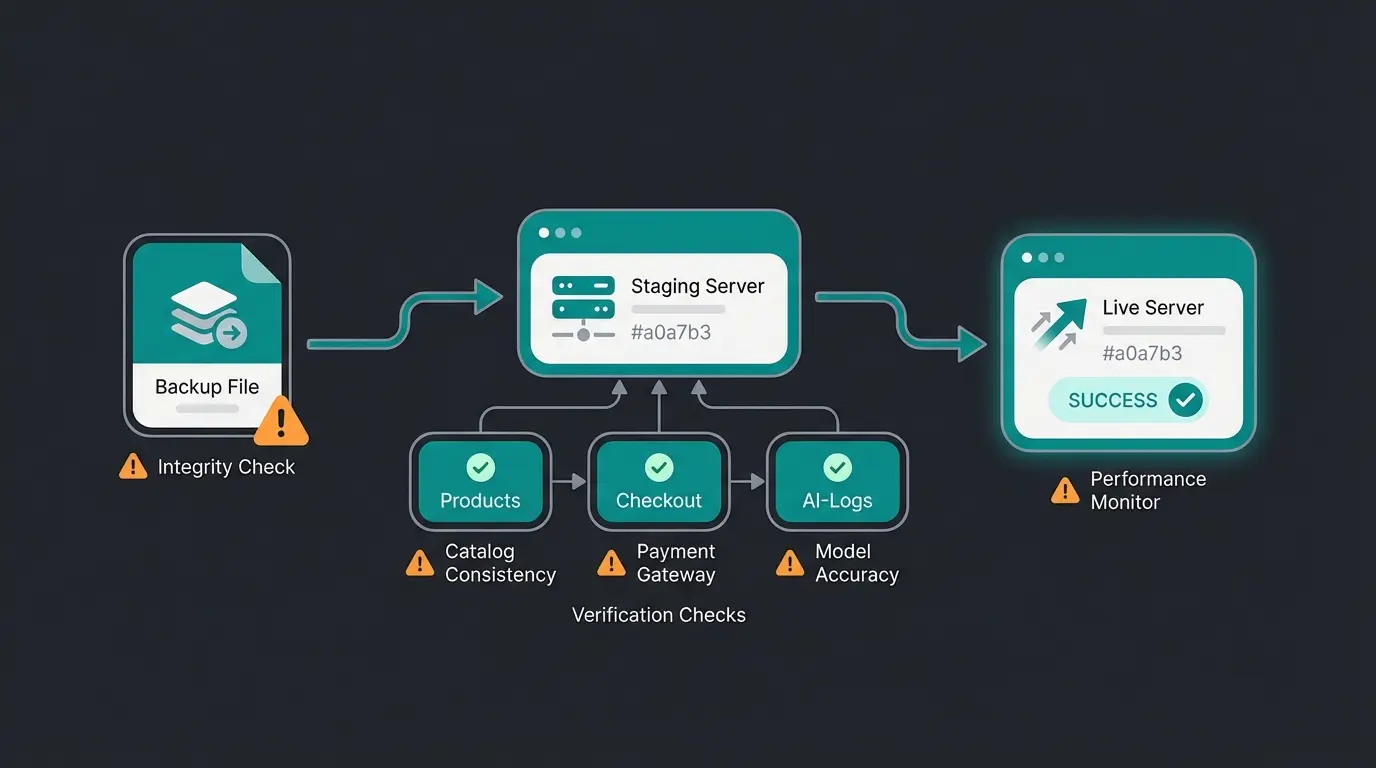
2. The Blindfolded Restore
A restore to the live system is like open-heart surgery—you don't want to discover problems during the procedure.
Best Practice: Never play a backup directly into the live shop unless absolutely necessary. According to iCreative Technologies, testing restores in isolation is the only safe approach.
The Safe Way:
- Create a staging environment.
- Import the backup there (`mysql -u user -p db < dump.sql`).
- Adjust the `sales_channel_domain` table so the shop is accessible under the staging URL. As noted on StackOverflow, this step prevents domain conflicts.
- Check: Are all products there? Does checkout work? Are the AI logs readable?
- Only then: Switch to live.
Code Snippet: Restore & Cleanup
After importing the database, caches often need to be cleared and indices rebuilt. This process is also documented by Dockware for containerized environments:
```bash # 1. Import database mysql -u [USER] -p [DB_NAME] < backup.sql # 2. Clear cache (Mandatory!) php bin/console cache:clear # 3. Generate thumbnails (if excluded) php bin/console media:generate-thumbnails # 4. Update indices (for search & SEO) php bin/console dal:refresh:index ```
Following proper Shopware SEO guide practices means ensuring your search indices are properly rebuilt after any restore operation.
Why AI & Complex Consultations Need Better Backups
This is where your competitive advantage comes in. A standard shop sells socks. Your clients use AI-powered product consultants that transform the entire shopping experience, as detailed in our AI E-Commerce overview.
Backing Up the Shop's Brain
When a customer spends 20 minutes interacting with an AI consultant to find the perfect technical setup, data is created. This often resides in special tables or logs that standard backup plugins may overlook.
- The Risk: A standard backup plugin often only backs up standard Shopware tables. If your AI solution uses custom tables (e.g., for vector embeddings or chat histories), these may be ignored.
- The Consequence: The shop is back online, but the AI has "amnesia." The personalized user experience is destroyed.
This is particularly critical for businesses with complex Shopware B2B ordering process workflows where AI consultation data feeds into purchase recommendations.
Ensuring proper Shopware structured data configuration is important, but it's worthless if a restore wipes out your AI's learned behaviors and customer preferences.
Checklist: Is Your Shopware Shop Secure?
Use this checklist to assess your current status. According to AskUbuntu best practices for Linux backup validation, regular audits are essential:
- ☐ 3-2-1 rule fulfilled? (Local, External, Offline/Immutable)
- ☐ Configuration backup: Is the `.env` file being backed up?
- ☐ Exclusion list optimized: Are `var/cache` and `node_modules` being ignored to save storage?
- ☐ Restore test: Has a backup been successfully restored to a test system in the last 3 months?
- ☐ AI data check: Are all tables from third-party plugins (especially AI tools) included in the backup?
- ☐ Emergency plan: Do you know where the SSH credentials are if the backend is no longer accessible?
Frequently Asked Questions About Shopware Backups
For high-traffic stores, database backups should run every 1-2 hours during business hours, with full file system backups nightly. The frequency depends on your Recovery Point Objective (RPO)—how much data can you afford to lose? For AI-powered shops with valuable consultation data, more frequent backups are recommended.
Shopware 6 uses UUIDs (binary data) instead of auto-increment IDs, requiring the --hex-blob flag in mysqldump. The folder structure also differs significantly, with Shopware 6 using a more Symfony-like architecture. Always verify your backup commands match your Shopware version.
No. Hosting snapshots are a valuable additional layer but should never be your only backup. If you need to switch hosts, if your account is suspended, or if the hosting provider experiences issues, you won't have access to these backups. Always maintain independent copies following the 3-2-1 rule.
First, identify which database tables your AI plugins create—these are often custom tables not included in default backup configurations. Add these tables explicitly to your backup scripts. Also consider backing up any vector embeddings or model fine-tuning data stored externally.
Create a staging environment and perform a full restore. Verify that products display correctly, checkout functions work, customer data is intact, and most importantly for AI shops—that consultation features and learned preferences are preserved. Test this at least quarterly.
Conclusion: Backup Is Business Continuity
A backup is not a tedious mandatory task for the IT department. It's the life insurance for your revenue and customer relationships. In an era where shops are becoming increasingly intelligent and complex through AI, the value of data grows exponentially.
Don't rely on "it'll probably be fine." Implement an automated, redundant strategy that protects not just your products and orders, but the intelligent systems that power your customer experience.
The shops that thrive aren't just those with the best products—they're the ones that can recover from any disaster without losing their competitive edge. Your AI consultation data, customer preferences, and personalization intelligence are assets that took months to build. Protect them accordingly.
Now that your data is secure, optimize your sales processes with intelligent AI solutions built on a solid, secure foundation. Our AI product consultants turn visitors into buyers while generating the valuable interaction data that makes your shop smarter every day.
Start Your AI Journey