
Introduction: Why Looking Good Isn't Enough in 2025
When you search for customize Shopware design today, you'll mostly find tutorials showing you how to change colors or swap out a logo. That's important, but it's only half the story. In the e-commerce landscape of 2025, it's no longer sufficient to simply put an aesthetically pleasing product catalog online.
The German e-commerce market is saturated and demanding. According to Mordor Intelligence, 63% of e-commerce revenue in Germany is now generated via smartphones. Customers scroll quickly, are impatient, and—here's the crucial point—they often feel left alone. While brick-and-mortar retail scores with consultation, the classic online shop is often just a silent shelf.
This is your opportunity: Design is not just decoration; design is communication.
In this comprehensive guide, you'll learn not only the technical basics to customize your Shopware design (from theme settings to child themes). We go a decisive step further: We show you how to use design to transform your shop from a static catalog into a digital consultant. We integrate insights on Conversational Commerce, current Shopware 6.6/6.7 updates, and AI-powered user guidance directly into your design strategy. Discover how AI E-Commerce is revolutionizing the way online stores interact with customers.
Of German e-commerce revenue comes from smartphones
Potential increase with AI-powered consultation
Of competitor articles—lacking strategic depth
The Basics: Quick Adjustments in the Admin Panel
Before we dive deep, the basics need to be solid. Shopware 6 offers powerful out-of-the-box tools to customize Shopware design without writing a single line of code. But even here, you should proceed strategically. Understanding Shopware AI features can help you make the most of these built-in capabilities.
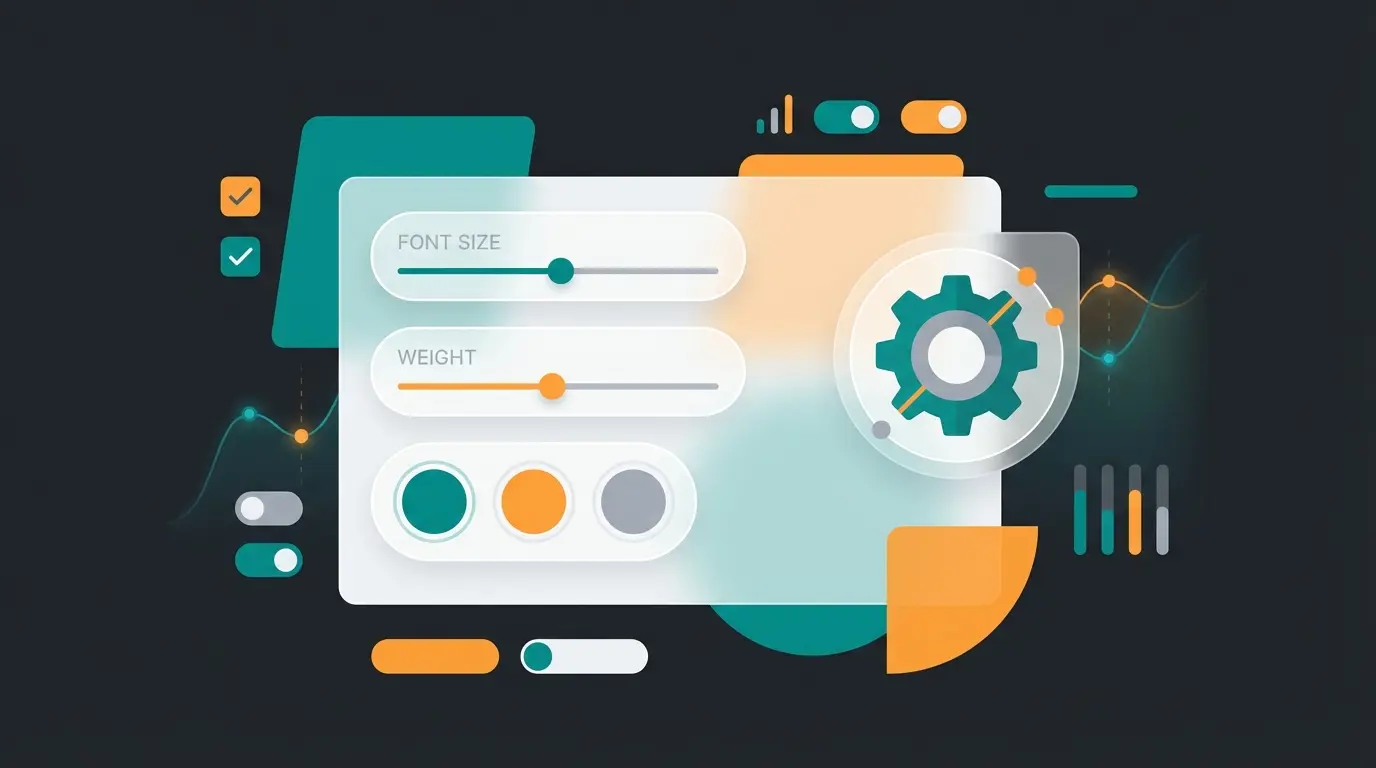
1. The Theme Editor: More Than Just Colors
In the admin area under Content > Themes, you'll find the editor. This is where you define the visual identity of your store.
Primary and Secondary Colors
- The Standard Mistake: Many shops use their primary color (brand color) for everything—header, footer, buttons.
- The Consultant Approach: Use your primary color sparingly and purposefully for calls-to-action (CTAs). If you're integrating a digital consultant or AI chatbot, its trigger button should be the most eye-catching color in the entire design—even more prominent than the shopping cart button on the homepage. Why? Because a consulted customer is more likely to buy and less likely to return products.
Typography
Readability on mobile devices is king. Shopware 6.7 and the upcoming European Accessibility Act (EAA) are forcing merchants to take accessibility seriously, as noted by Ecomwise and Shopware's official documentation. Pay attention to sufficient contrasts and scalable font sizes.
2. Logos and Favicons
An often underestimated detail: the favicon. In a world where users have 20 tabs open simultaneously, your favicon is the only anchor to your brand. Make sure it's recognizable even at 16x16 pixels. This small detail contributes significantly to brand recognition and can impact how customers perceive your Shopware store with AI integration.
Mastering Shopping Experiences: From Grid to Story
The Shopping Experiences (Erlebniswelten) are the heart of Shopware design. They allow you to create landing pages, category pages, and (since Shopware 6.6 by default) product detail pages via drag-and-drop. According to Zenit Design, this represents one of the most powerful customization tools available in the platform.
The Problem of Product Deserts
Most shops use Shopping Experiences like this:
- Large hero banner at the top.
- Below that, an endless grid of product boxes.
This is boring and leads to "choice overload." The customer sees 50 products and doesn't know which one is right for them. This is precisely where you can optimize Shopware product pages to stand out from the competition.
Strategy: The Consultation Sandwich
To customize Shopware design and boost conversion, break up the grid. Build in "consultation islands."
Here's how to implement it in Shopping Experiences:
- Section 1: Hero Area with a Question. Instead of "Summer Collection 2025," write: "What summer type are you?"
- Section 2: Product Slider (Top Sellers).
- Section 3 (The Game Changer): Interactive Element. Add a CMS block here that doesn't sell, but consults. This could be a text block that references your AI consultant, or a direct entry point into a guided selling process. Learn how AI-powered product consultation can transform this experience.
- Section 4: Remaining Product Grid.
Replace static banners with engaging questions that invite interaction
Showcase best products to build confidence and social proof
Insert AI-powered guidance element to break catalog fatigue
Display remaining products for those ready to browse
Pro Tip for Shopware 6.6 Users
With the update to Shopware 6.6, the assignment of layouts has changed. The standard product page is now technically treated like a category page and controlled via Shopping Experiences.
- Advantage: You can finally make global changes to product page design without programming.
- To-Do: After updating to 6.6, be sure to check your product page layouts, as old TPL customizations may no longer work.
Advanced: Customizing the User Journey with AI
Here we leave the standard behind and differentiate ourselves from the competition. How do we integrate Conversational Commerce and AI not as an annoying pop-up, but as a fixed component of the design? This is where AI-powered product consultation becomes your competitive advantage.
1. Conversational Design Instead of Static Filters
Classic filters (size, color, price) are technical, not human. A customer often isn't searching for "laptop bag, 15 inch, leather," but for "bag for the office that looks elegant."
Design Adaptation: Replace or supplement the classic sidebar filtering with a prominent consultation entry point above the product list.
- Design Element: A "Conversational Bar." Similar to a search field, but with an open question: "What solution are you looking for today?"
- Technology: This can be realized via a custom CMS element in Shopping Experiences that's linked to your AI solution. Explore our comprehensive guide on AI product consultation for implementation details.
2. AI as a Design Element (UI/UX)
According to Digital Radium, chatbots and AI assistants can increase the conversion rate by up to 30%. But often they're perceived as foreign bodies in the design (the classic "chat bubble" in the bottom right corner).
Integrated Approach: When you customize your Shopware design, plan the space for AI as a fixed element.
- On the Product Detail Page (PDP): Place the AI consultation window next to the buy box or directly under the description. Title: "Unsure? Ask our product AI." This approach is key to how AI product consultation transforms the shopping experience.
- In the Empty State (No Search Results): This is the worst moment in UX design. "No results found." Better: Redesign this page. "We couldn't find exactly that, but our AI can find an alternative. Describe your wish in more detail."
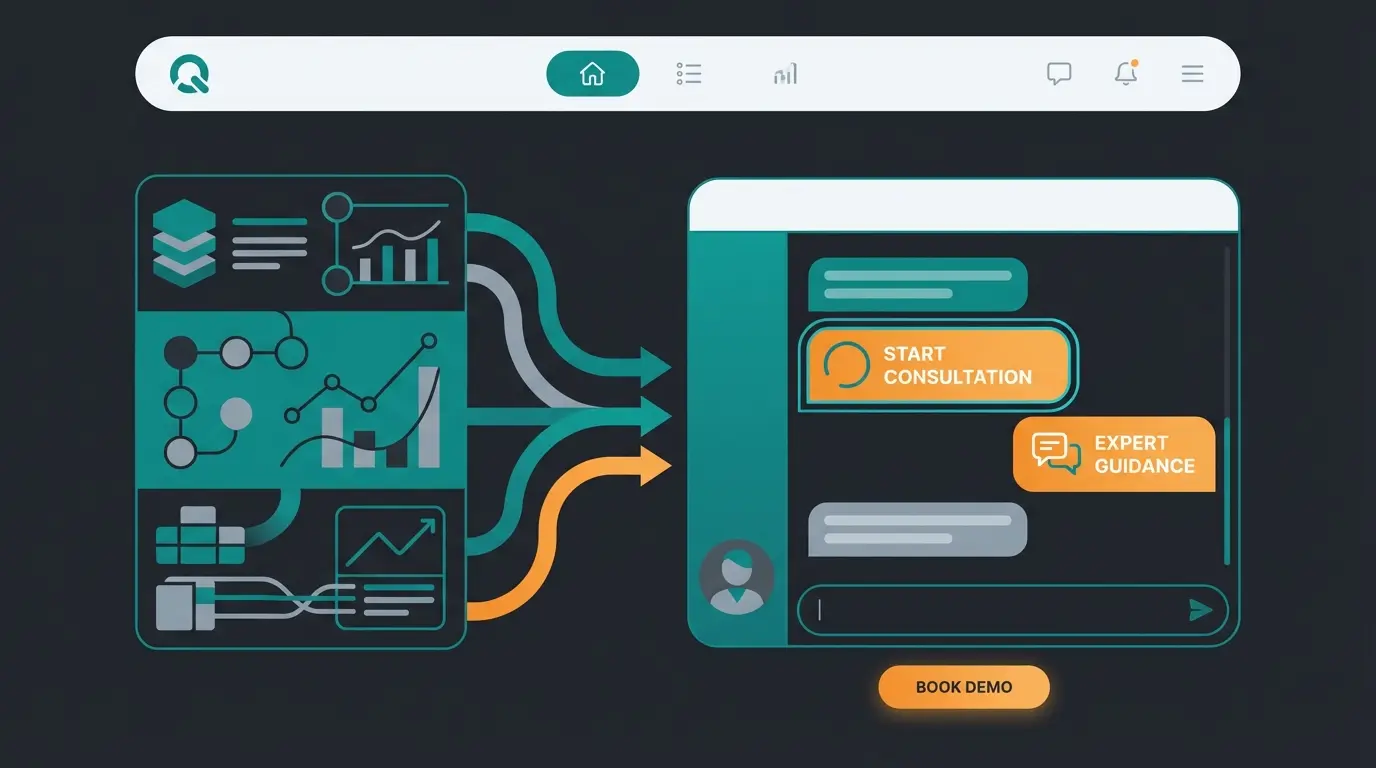
Standard Design vs. Consultation Design Comparison
| Feature | Standard Shopware Design | Consultation-First Design (Your Advantage) |
|---|---|---|
| Hero Area | Static image + discount code | Interactive question / AI prompt entry |
| Product List | Endless grid | Interrupted by consultation sections |
| Filters | Technical (price, color) | Needs-based (e.g., "For Beginners") |
| Product Detail Page | Long text block (description) | Dynamic FAQ / AI summary |
| Mobile UX | Hamburger menu | Sticky "Consultant" button at bottom |
This comparison highlights the fundamental shift from passive catalog presentation to active customer guidance. The AI Chatbots transform not just customer service, but the entire shopping experience.
Stop displaying products passively. Start guiding customers to the perfect purchase with AI-powered consultation that integrates seamlessly into your Shopware design.
Start Your Free TrialTechnical Deep Dive: Child Themes and Code Adjustments
For agencies and developers: To customize Shopware design sustainably, you can't avoid a child theme. Direct changes to the core or purchased theme will be overwritten with the next update. As explained by RH Webdesign, this is essential for maintaining customizations across updates.
1. Why a Child Theme Is Mandatory
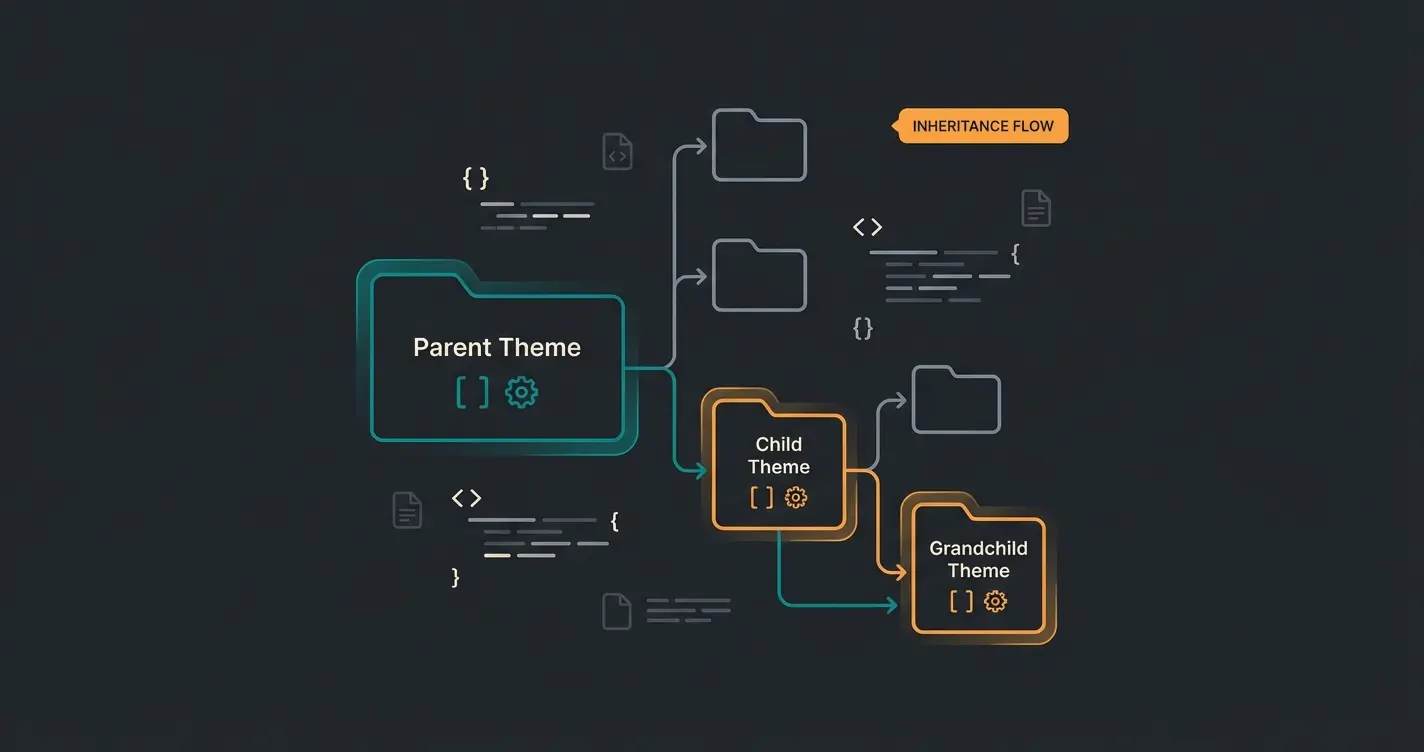
A child theme inherits all properties of the parent theme (e.g., the Shopware standard theme or a premium theme like ThemeWare), but allows selective overriding of individual files. When selecting your foundation, consider the best Shopware themes that offer both design flexibility and AI readiness.
Directory Structure of a Theme:
``` custom/plugins/MyChildTheme ├── composer.json └── src ├── Resources │ ├── app │ │ └── storefront │ │ ├── dist │ │ └── src │ │ ├── main.js │ │ └── scss │ │ └── base.scss │ ├── theme.json │ └── views │ └── storefront │ └── layout │ └── header │ └── header.html.twig └── MyChildTheme.php ```
2. Configuring the theme.json
The `theme.json` controls the inheritance. Here's an example of a correct setup according to Shopware's official documentation:
```json { "name": "MyChildTheme", "author": "Your Name", "views": [ "@Storefront", "@Plugins", "@MyChildTheme" ], "style": [ "app/storefront/src/scss/overrides.scss", "@Storefront", "app/storefront/src/scss/base.scss" ], "script": [ "@Storefront", "app/storefront/dist/storefront/js/my-child-theme/my-child-theme.js" ], "asset": [ "@Storefront", "app/storefront/src/assets" ], "configInheritance": [ "@Storefront", "@ParentThemeName" ] } ```
Important: Replace `@ParentThemeName` with the technical name of the theme you're deriving from (e.g., `@ThemeWareModern`).
3. Breaking Changes in Shopware 6.6 & 6.7
If you're currently (2025) customizing designs, you need to be aware of two massive changes:
A. Asynchronous JavaScript (Shopware 6.6)
Shopware completely restructured JavaScript loading in version 6.6. Previously, there was one huge `all.js`. Now scripts are loaded asynchronously and only when needed, as detailed in Shopware's changelog and analyzed by Communicode.
- Consequence: If you use JavaScript in your child theme that waits for `PluginManager` or jQuery, you need to adapt your code. Use `async` imports, otherwise your design or performance will suffer.
- SEO Advantage: This massively improves the Lighthouse Score and Core Web Vitals, as unused JS no longer blocks rendering.
B. The End of Premium Themes (Shopware 6.7)
With the upcoming release 6.7 (May 2025), Shopware is discontinuing its own "Premium Themes" (Elle, Shape, Cinema, etc.), as announced on SW Simplyworks and confirmed in Shopware's roadmap and release notes.
- Reason: They don't meet the requirements of the European Accessibility Act (EAA).
- Action Required: If your shop is based on one of these themes, you must act now and migrate to the standard theme or a third-party theme and customize it via child theme. A "business as usual" approach is technically no longer possible in 6.7.
Mobile First: Design for the Thumb
As mentioned at the beginning: 63% of revenue comes from mobile. When you customize Shopware design, start with the smartphone. This mobile-first approach is especially important for B2B merchants, as outlined in our Shopware B2B guide.
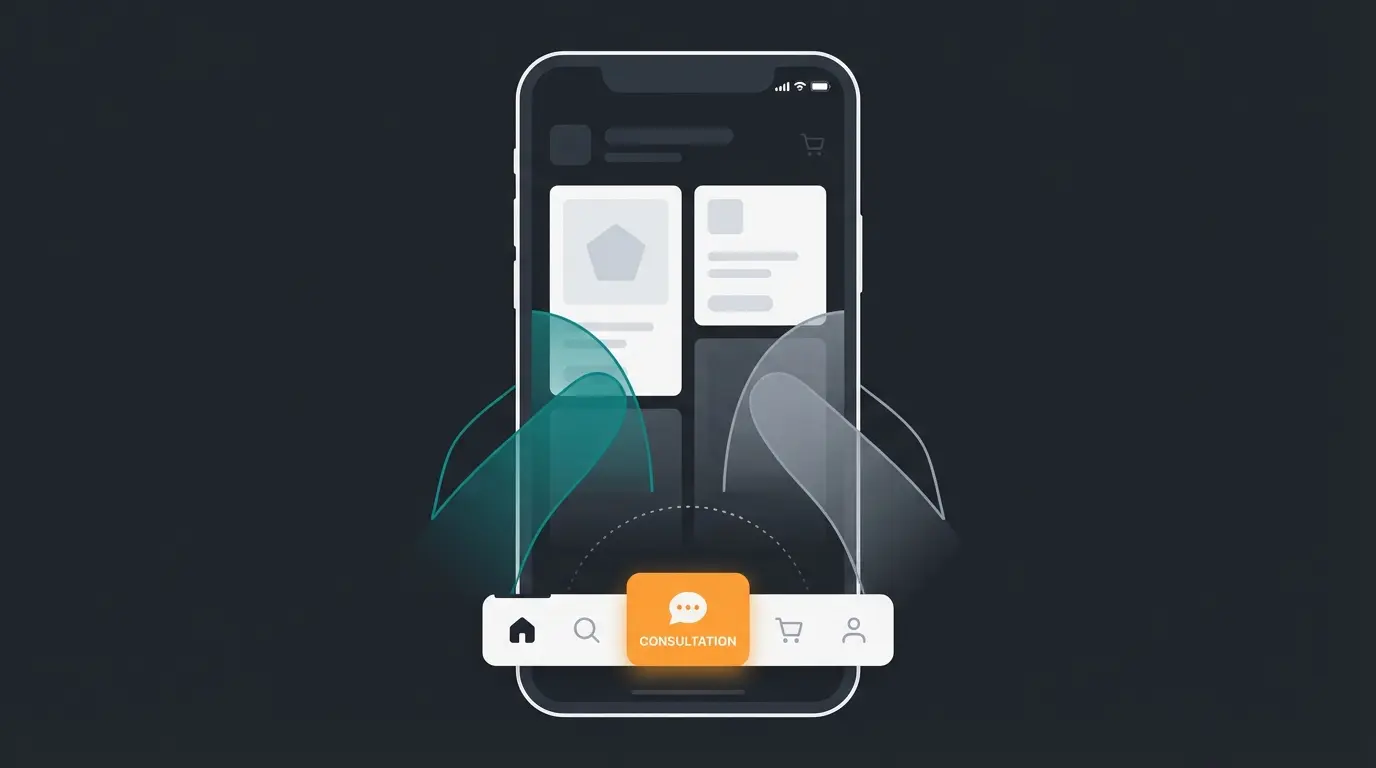
1. Consider the Thumb Zone
Users mostly hold their smartphone with one hand and navigate with their thumb.
- Problem: The classic "hamburger menu" is in the top left—the hardest zone to reach for right-handed users.
- Solution: Implement a Sticky Bottom Navigation with these elements: Home, Search, Consultation (AI) (highlighted!), Cart, Account
The consultation button should be the most prominent element in your bottom navigation. This is where AI-powered sales consultants can make the biggest impact on mobile conversion rates.
2. Performance Is Design
A beautiful design that takes 5 seconds to load is worthless.
- Use WebP images (Shopware often does this automatically, but check your Shopping Experiences uploads).
- Avoid "Layout Shift" (CLS) by defining fixed aspect ratios in CSS for images and banners. This prevents text from jumping when images load late.
Maximum acceptable load time on mobile devices
Cumulative Layout Shift threshold for good UX
Share of e-commerce revenue from smartphones
Conclusion: Design as Competitive Advantage
The topic of customizing Shopware design has evolved. In 2025, it's no longer about having the prettiest storefront, but the best salesperson.
Strategy Summary:
- Basis: Use a child theme to remain update-safe, especially with Shopware 6.7 on the horizon.
- Structure: Break up rigid product grids in Shopping Experiences with consultation sections.
- Interaction: Integrate AI and consultation elements deep into the UI, instead of hiding them in a corner.
- Mobile: Optimize for the thumb and fast load times (Async JS).
The standard Shopware shop is a powerful tool, but it's "just" a tool. Through targeted design customizations that guide the user by the hand, you transform the software into a digital consultant that's there for your customers 24/7.
Ready for the next step? Don't just think about what color your header should have, but how your shop speaks with the customer. The technology for this exists—it's up to you to pour it into the design.
FAQ: Common Questions About Shopware Design
Yes, through the Theme Editor and Shopping Experiences, you can change layouts, colors, and fonts without code. For deeper changes (header structure, special functions), however, you'll need a child theme and coding knowledge—or a plugin.
If you're using a standard theme or a well-maintained third-party theme (like ThemeWare), you're generally safe. If you're using one of the old Shopware Premium Themes (Shape, Elle, etc.), you must switch themes, as these are being discontinued.
Avoid pure chat bubbles. Use embedded design: Build the chat window as a fixed element on the page, for example as a consultant box between product rows or as the primary call-to-action on the homepage.
If your child theme uses JavaScript that waits for PluginManager or jQuery, you need to update your code to use async imports. The benefit is significantly improved Lighthouse scores and Core Web Vitals.
Standard design presents products passively in grids with technical filters. Consultation-first design breaks up grids with guidance sections, uses needs-based filtering, and integrates AI consultation as a core design element—not an afterthought.
Don't just theme your shop—equip it with intelligent consultation. Our AI solution integrates seamlessly into your Shopware design, turning browsers into buyers.
Get Started Free